Important: The functionality described on this page is only available to early adopters.
Veeva AI Agents use a Large Language Model (LLM) to perform a set of Agent Actions in Vault and determine the actions and responses Veeva AI Chat can provide to users. You can define the Agent’s Objective, Context, and Action’s instructions, which inform the LLM of the Agent’s role, responsibilities, and parameters in which it can operate, ensuring Agent Actions are executed as you intend. A Vault can include standard and custom Agents. This article describes how to configure custom Agents for use in your Vault.
Agents are Vault-specific, meaning they cannot interact with data on other Vault domains or outside of your Vault. In addition, if no Agents are enabled in your Vault, users cannot interact with the Veeva AI Chat window.
See below for definitions of terms used in this article:
- Agent: Defines a set of Agent Actions that can be performed on a document or object record in your Vault.
- Agent Objective: A description of the Agent’s roles and responsibilities, similar to a job description.
- Agent Context: Defines the information an Agent knows about your Vault, allowing the Agent Action to return this information in a response. Agent Context can include document content and data such as document fields, object fields, and object relationships.
- Agent Action: The actions users can select in the Veeva AI Chat window, such as Summarize Document and Translate Record. Agents perform Agent Actions based on the provided Agent Objective, Context, and instructions.
- Agent Tools: You can assign Agent Tools to Agent Actions. When an Agent Action is executed in Veeva AI Chat, your LLM can request Agent Tools and use Vault’s tool response to complete the Agent Action.
Configuration Overview
The following list is an overview of configuring custom Agents in your Vault:
- Configure a custom LLM Connection if you are not using a Veeva-provided LLM connection. This action establishes a connection between your Vault and your LLM.
- Enable a default LLM connection through Admin > Settings > Veeva AI Settings.
- Configure the Agent Objective using a description of the Agent’s intended roles and responsibilities.
- Configure the parameters of the Agent Context.
- Configure the Agent Action by defining a description and instructions on how to execute the action.
- Optional: Assign an Agent Tool to the Agent Action.
Configuring a Custom LLM Connection
If you are not using a Veeva-provided LLM, you must set up a connection that allows Vault to communicate with your own LLM provider. This connection is required so Agents can send Vault data to your LLM, which allows it to understand how to execute and respond to Agents. To begin establishing the custom LLM connection, set up an LLM Connection Authorization record.
When configuring a custom LLM connection, it is recommended to enable a guardrail in your LLM account provider. This feature allows you to prevent Veeva AI Chat from engaging in inappropriate conversations. We recommend selecting the Standard content filter in AWS Bedrock and the default guardrail in Azure AI Foundry.
AWS Bedrock Connection
If you are using an AWS Bedrock LLM, ensure you have following information before beginning this process. You can find this information in your AWS Bedrock LLM account:
- Access Key
- Secret Access Key
- AWS Region
- Model ID
Follow the steps below to create the LLM Connection Authorization record for an AWS Bedrock LLM:
- Create a Connection Authorization record and select Client Credential as the Connection Type.
- Enter a Name for this connection.
- Set the Status to Active or Inactive. By default, new Client Credential Connection Authorization records are created in the Active status.
- Enter your Access Key in the Client ID field.
- Click Save.
- Select Set Client Secret from your new Client Credential Connection Authorization record’s Actions menu.
- Enter your Secret Access Key in the Client Secret and Confirm Client Secret fields.
- Click Save.
- Create another Connection Authorization record and select LLM as the Connection Type.
- Enter a Name.
- Enter an API Name.
- Select AWS Bedrock from the Provider drop-down.
- Enter the Model ID in the Model Name field.
- Select the Client Credential Connection Authorization record you configured in steps 1-5 from the Authorization drop-down.
- Enter the AWS Region in the Region field.
- Click Save.
The LLM Connection Authorization record is now available for an AWS Bedrock LLM connection. Next, select your default LLM connection.
Azure AI Foundry Connection
If you are using an Azure AI Foundry LLM, ensure you have following information before beginning this process. You can find this information in your Azure AI Foundry LLM account:
- API Key
- Azure Open AI endpoint
- Model ID
Follow the steps below to create the LLM Connection Authorization record for an Azure AI Foundry LLM:
- Create a Connection Authorization record and select API Key as the Connection Type.
- Enter a Name for this connection.
- Set the Status to Active or Inactive. By default, new Client Credential Connection Authorization records are created in the Active status.
- Click Save.
- Select Set API Key from your new API Key Connection Authorization record’s Actions menu.
- Enter the API key in the API Key and Confirm API Key fields.
- Click Save.
- Create another Connection Authorization record and select LLM as the Connection Type.
- Enter a Name.
- Enter an API Name.
- Select Azure from the Provider drop-down.
- Enter the Model ID in the Model Name field.
- Select the API Key Connection Authorization record you configured in steps 1-5 from the Authorization drop-down.
- Click Save.
The LLM Connection Authorization record is now available for an AWS Bedrock LLM connection. Next, select your default LLM connection.
How to Select your Default LLM
Once you create the custom LLM connection, you can select it as your default LLM connection. Vault uses the default LLM connection for all Agent operations in your Vault.
To select your default LLM:
- Navigate to Admin > Settings > Veeva AI Settings.
- Click Edit.
- Select an LLM connection from the Default LLM Connection drop-down.
- If you are using an AWS Bedrock LLM connection with a guardrail configured, enter the Default AWS Guardrail ID and Version.
- Optional: Clear the Auto-switch Chat Conversation setting if you want to remove the conversation switching ability in Veeva AI Chat.
- Enter your LLM’s number of Maximum Output Tokens. You can enter a maximum of 10,000 and minimum of 512 tokens. The default is 4,096.
- Click Save.
Your default LLM connection is now established. You can return here to change your default LLM if necessary.
Test Your LLM Connection
Use the following steps to test your LLM connection to ensure there are no issues:
- Ensure you have a security profile with the necessary permissions to configure custom Agents and use Veeva AI Chat.
- Navigate to Admin > Agents > Base Document Chat Agent > Actions > Edit.
- Set the Status to Active.
- Click Save.
- Navigate to a document in your Library.
- Click the Veeva AI icon (
 ) in the upper right of the Vault interface when viewing a document via the Doc Info page.
 - Select Summarize Document.
If your LLM connection is properly configured, Veeva AI Chat responds with a document summary. You can now begin configuring custom Agents.
Standard Agents
By default, your Vault includes two standard Agents with the following Agent Actions:
- Base Document Chat Agent
- Summarize Document
- Translate Document
- Ask Questions
- Base Object Chat Agent
- Summarize Record
- Translate Record
- Ask Question
These default Agent Actions are only available to your users if you activate the Base Document Chat and Base Object Chat Agents in your Vault. You cannot edit or delete standard Agents or any of their Agent Objectives, Context, or Actions.
These Agents fall under the Document Agent and Object Agent classes respectively. Currently, when configuring a custom Agent, you can only create Agents within these classes.
How to Configure a Custom Agent
To configure a custom Agent:
- Navigate to Admin > Configuration > Agents.
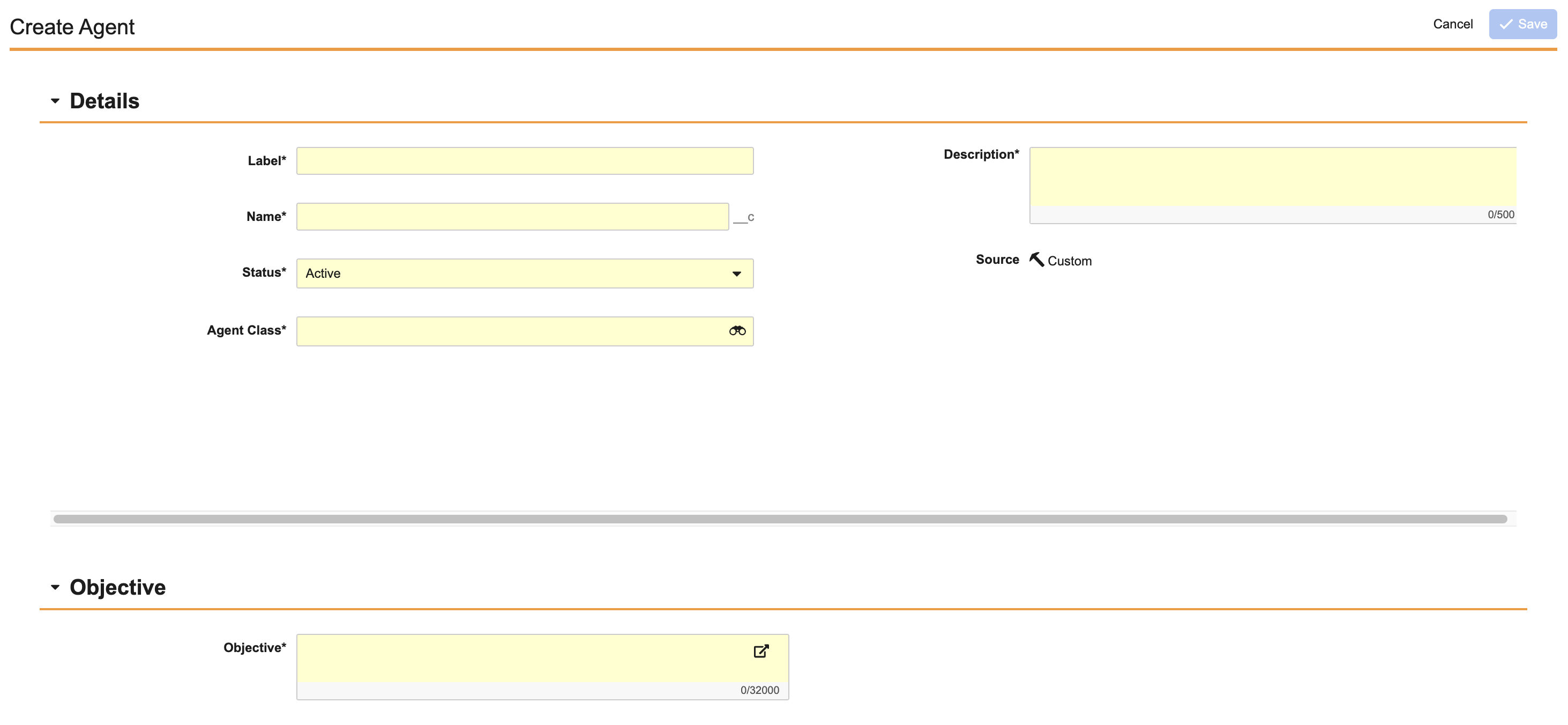
- Click Create to access the Agent Configuration page.
- Enter a Label. The Name value is populated based on the Label.
- Set the Status to Active or Inactive. By default, new Agents are created in the Active status. If the Agent is Inactive, its related Agent Actions will not display in Veeva AI Chat.
-
In the Agent Class drop-down, select Base Document Class for a Document Agent or select Base Object Class for an Object Agent. You cannot undo this selection.
- If you selected Base Document Class, select the Document Type where this Agent can perform Agent Actions.
- Optional: If you selected Base Object Class, select the Primary Object and Object Type where this Agent can perform Agent Actions.
- Enter a Description. Ensure the description is clear and precise as Vault sends this information to your LLM to help it understand the basic purpose of the Agent.
- Enter the Agent’s Objective. This description should reflect the roles and responsibilities of the Agent. You can write the description as if you are talking to the Agent. For example, a Site Visit Agent Objective could read, “Your primary objective is to summarize, quality check, and translate specific site visit object records.” Use field reference syntax to include attributes such as fields, labels, and user names in the Agent Objective.
- Click Save.
The basic details on the Agent are now configured. Next, configure the Agent Context.
Configuring Agent Context
Agent Context defines information about a document or record available to an Agent Action when it is executed. The Agent Action uses this information to return relevant details to users in Veeva AI Chat. For example, if you configure a Summarize Document action to perform a spell check, you can use the Agent Context to instruct the Agent Action to spell check only the document text, certain fields in the document, or the document source file.
You can also use Agent Context to instruct the Agent Action to return specific field values on a record. For example, a Summarize Record action could return the Last Modified Date value and show a timeline of changes to the record.
How to Configure Docuemnt Agent Context
To configure Agent Context for a Base Document Class Agent:
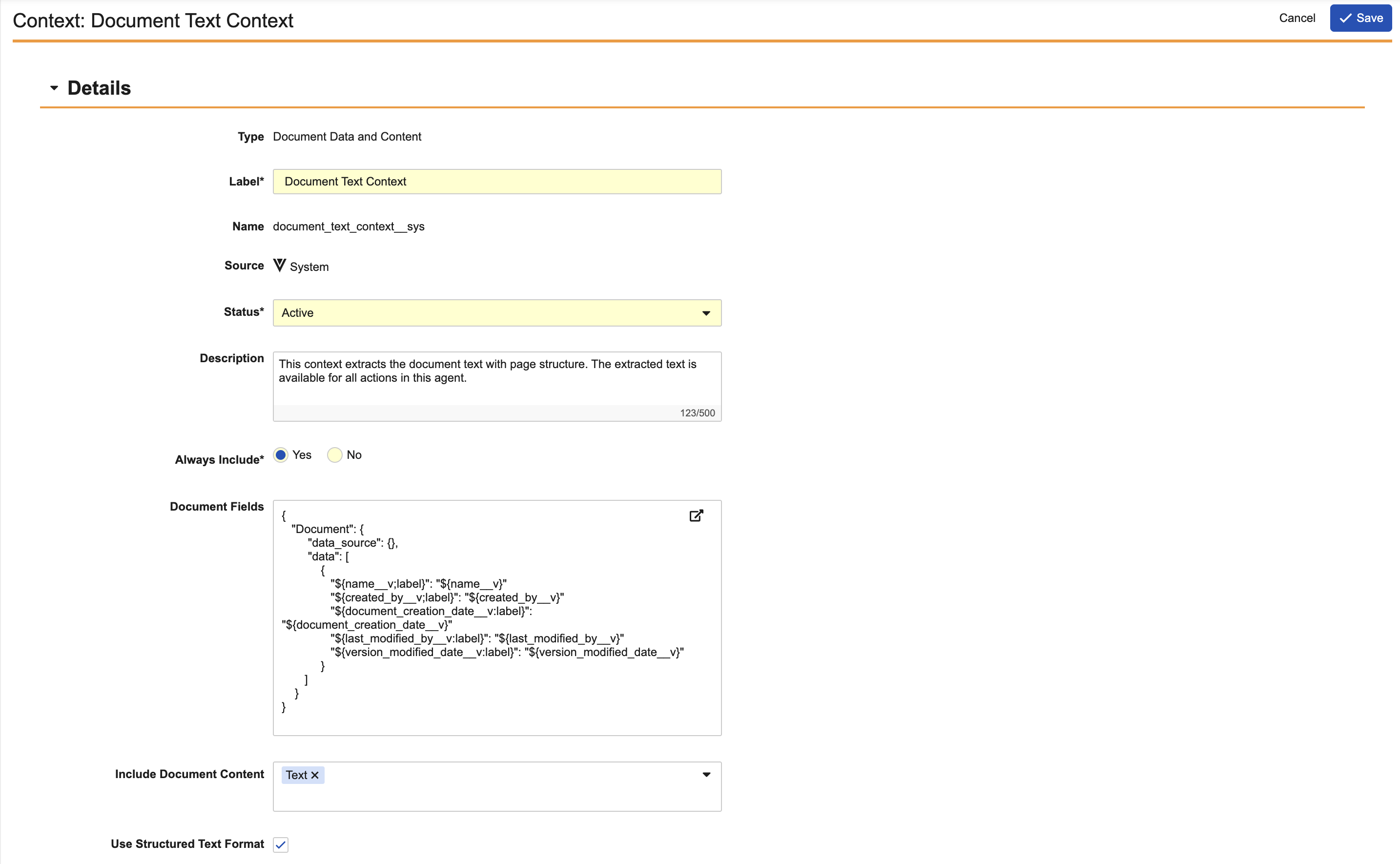
- Select Context on the Agent Configuration page.
- Click Create.
- Select Document Data and Content or Related Document Data and Content from the Type drop-down.
- Enter a Label. The API Name value is populated based on the Label value.
- Set the Status to Active or Inactive. By default, new Agent Context is created in the Active status.
- Optional: Enter a Description. Ensure the description is clear and precise as Vault sends this information to your LLM to help it understand and execute the Agent Context.
- Select Yes on the Always Include setting to automatically include this Agent Context with each Agent Action configured in this Agent. Select No to manually include the Agent Context with each Agent Action as necessary.
- If you selected Related Document Data and Content, select a Relationship Type. Only Single Use document relationships are available for selection.
- Optional: Enter Document Fields using the Agent Context Output Template. Including document fields prompts the Agent Action to display the field label and values in the response. This field is required if you do not select an option from the Include Document Content picklist.
- Optional: Select one or more options from the Include Document Content picklist: Text, Images, or Source File. Select Text to include all document text in the Agent Action. Select Images to export each page in the document as an image. Select Source File to include the document’s source file in the Agent Action. This field is required if Document Fields is left blank.
- Optional: Select Use Structured Text Format to prompt the Agent Action to respond in an XML-based format that separates each page of content with XML tags.
- Click Save.
The Agent Context is now available for use with Agent Actions configured within your Base Document Class Agent. Next, configure the Agent Actions.
Note: If Images is selected, only the first 20 pages are included with an Agent Action.
How to Configure Object Agent Context
To configure Agent Context for a Base Object Class Agent:
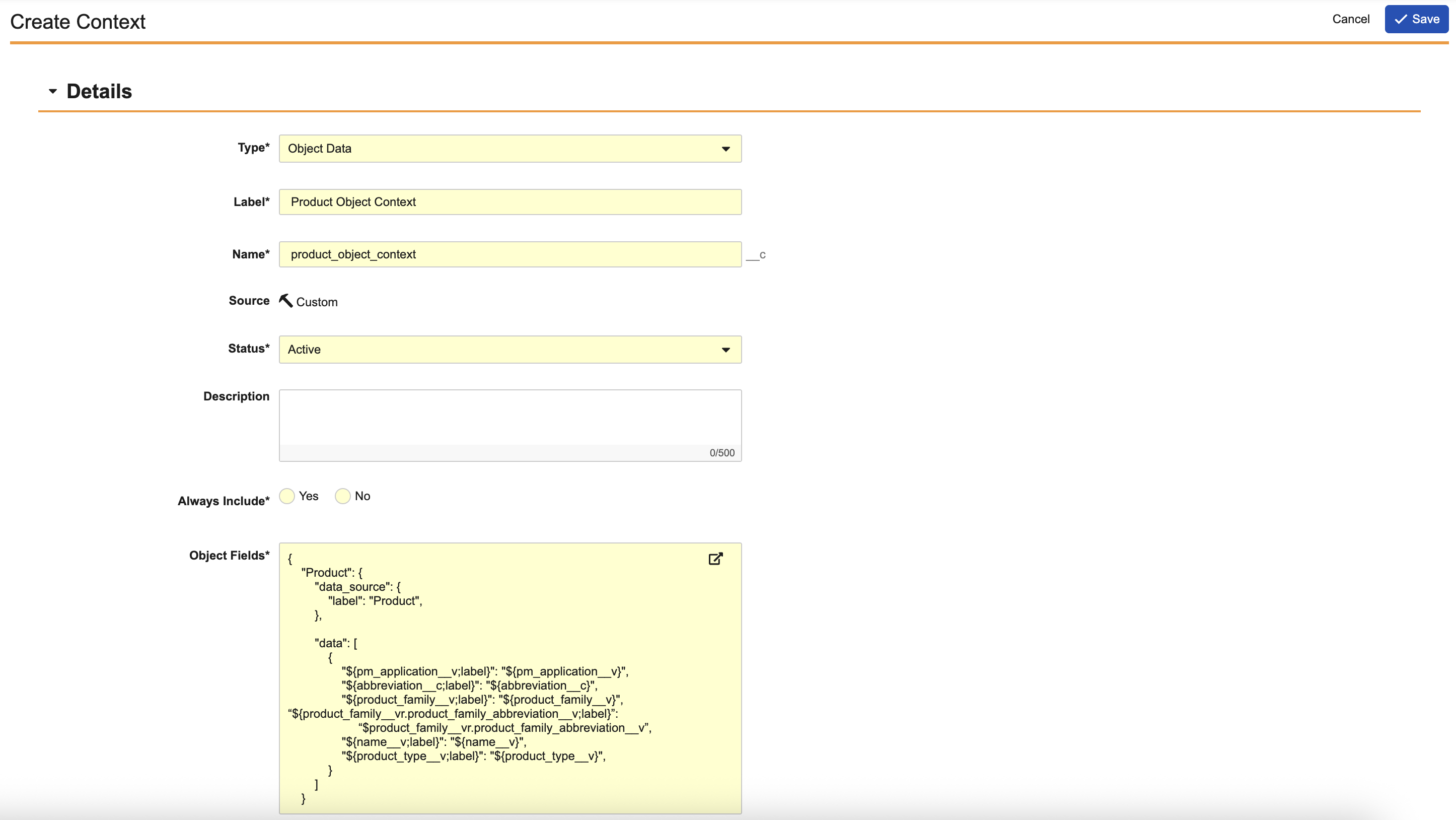
- Select Context on the Agent Configuration page.
- Click Create.
- Enter a Label. The API Name value is populated based on the Label value.
- Set the Status to Active or Inactive. By default, new Agent Context is created in the Active status.
- Optional: Enter a Description. Ensure the description is clear and precise as Vault sends this information to your LLM to help it understand and execute the Agent Context.
- Select Yes on the Always Include setting to automatically include this Agent Context with each Agent Action configured in this Agent. Select No to manually include the Agent Context with each Agent Action as necessary.
- Enter the Object Fields using the Agent Context Output Template. Including object fields prompts the Agent Action to display the field labels and values in the response.
- Click Save.
The Agent Context is now available for use with Agent Actions configured within your Base Object Class Agent. Next, configure the Agent Actions.
Agent Context Output Template
Using document and object fields in the Agent Context allows the Agent Action to extract field values and display them in the Agent Action’s response in Veeva AI Chat. For example, you can use Agent Context to prompt the Summarize Document action to return the Name, Created Date, and Last Modified Date of a document the user is viewing in Vault. You can also use Agent Context to return field values from related and child records in a Summarize Record action.
When including document and object fields in the Agent Context, you must use the Agent Context Output Template. Vault sends this template to your LLM at runtime so it can understand the data you want to pull from the provided fields.
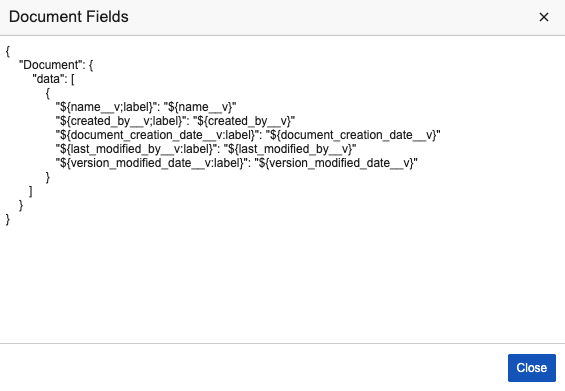
The basic structure of the template is as follows:
- Add “Document” to the top of the template for Document Agent Context. Add the object name for Object Agent Context. You can include multiple objects, such as related objects and child or parent objects.
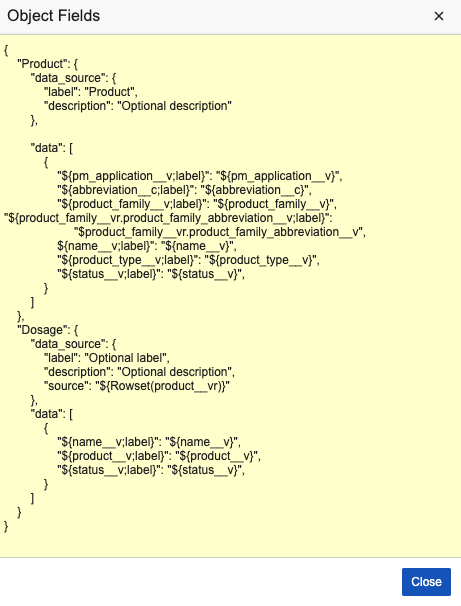
data_source: Include field labels and descriptions from the object or related objects, such as the Name, Description, or Label of inbound relationships. Thedata_sourceis only required at the top of the template if related objects (inbound relationships) are included. In this case, a source referencing the inbound relationship is required.data: Include the fields and their label from which the Agent Context will pull values. You can reference field values using${field_name}. You can reference field labels using${field_name;label}. You can reference field values and labels in outbound relationships using${outbound_relationship_name.field_name}or${outbound_relationship_name.field_label}.
The Agent Context Output Template allows the use of Microsoft Word template syntax and field reference syntax. See below for examples of templates used in Document Agent Context and Object Agent Context.
Document Agent Context Example
Object Agent Context Example
In the example below, Dosage is a child object of Product.
How to Configure Agent Actions
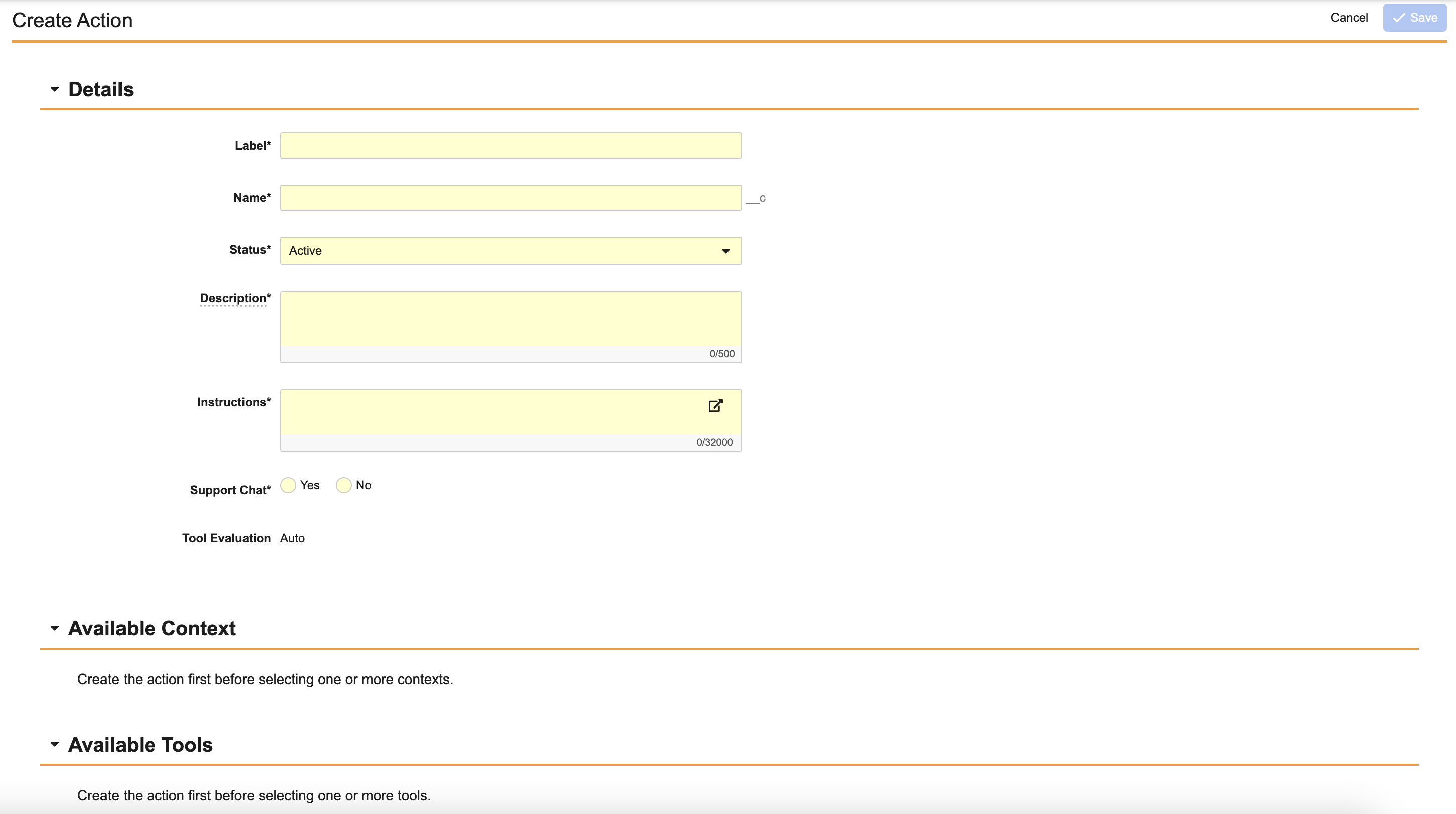
Agent Actions define the tasks an Agent can execute through Veeva AI Chat. Agent Actions follow the specific instructions you provide as well as any assigned Agent Context or Agent Tools. It is important to ensure the instructions are clear and precise, as ambiguity can lead to errors when the Agent Action is executed.
To configure an Agent Action:
- Select Actions on the Agent Configuration page.
- Click Create.
- Enter a Label. The API Name value is populated based on the Label value.
- Set the Status to Active or Inactive. By default, new Agent Actions are created in the Active status.
- Enter a Description of the Agent Action. Ensure the description is clear and precise as Vault sends this information to your LLM to help it understand the Agent Action.
- Enter the Agent Action’s Instructions. Your LLM uses these instructions to understand how to execute and respond to the Agent Action.
- Select Yes on the Support Chat setting to display this Agent Action in the Veeva AI Chat window. Select No to hide it from the Veeva AI Chat window.
- Click Save.
Your Agent is now configured and users can select the Agent Actions in Veeva AI Chat.
Writing Agent Action Instructions
When writing the Agent Action’s instructions, you can use simple instructions, such as “Summarize document” or slightly more complex details that define the structure of the Agent Action’s response. For example, if you are configuring a Summarize Document Agent Action, your instructions could prompt the Agent Action to respond with a header for a one-line summary, specific document metadata, and related documents.
To reference field values from the primary object, related objects, or documents, use Word formatted output field reference syntax.
Adding Agent Context and Tools to an Action
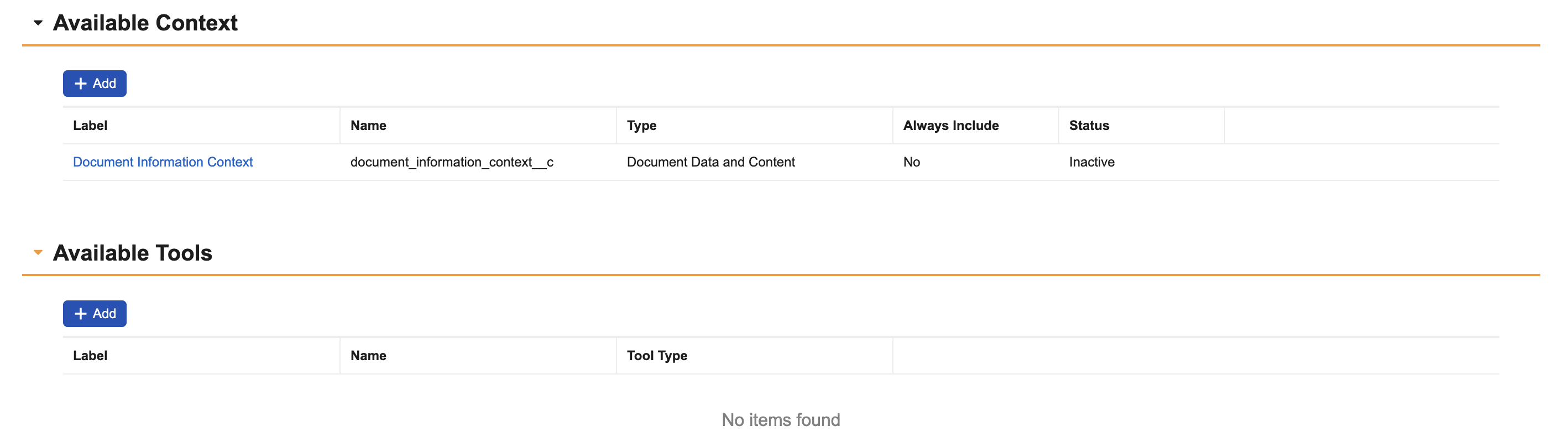
You can assign Agent Context and Agent Tools to the Agent Action after it is saved.
To add Agent Context and Agent Tools:
- On the Agent Action Configuration page, click Available Context or Available Tools.
- Click Add.
- Select the Agent Context or Agent Tool from the dialog.
- Click OK.
The Agent Action will now operate within the parameters of the Agent Context and/or Agent Tool you assigned.
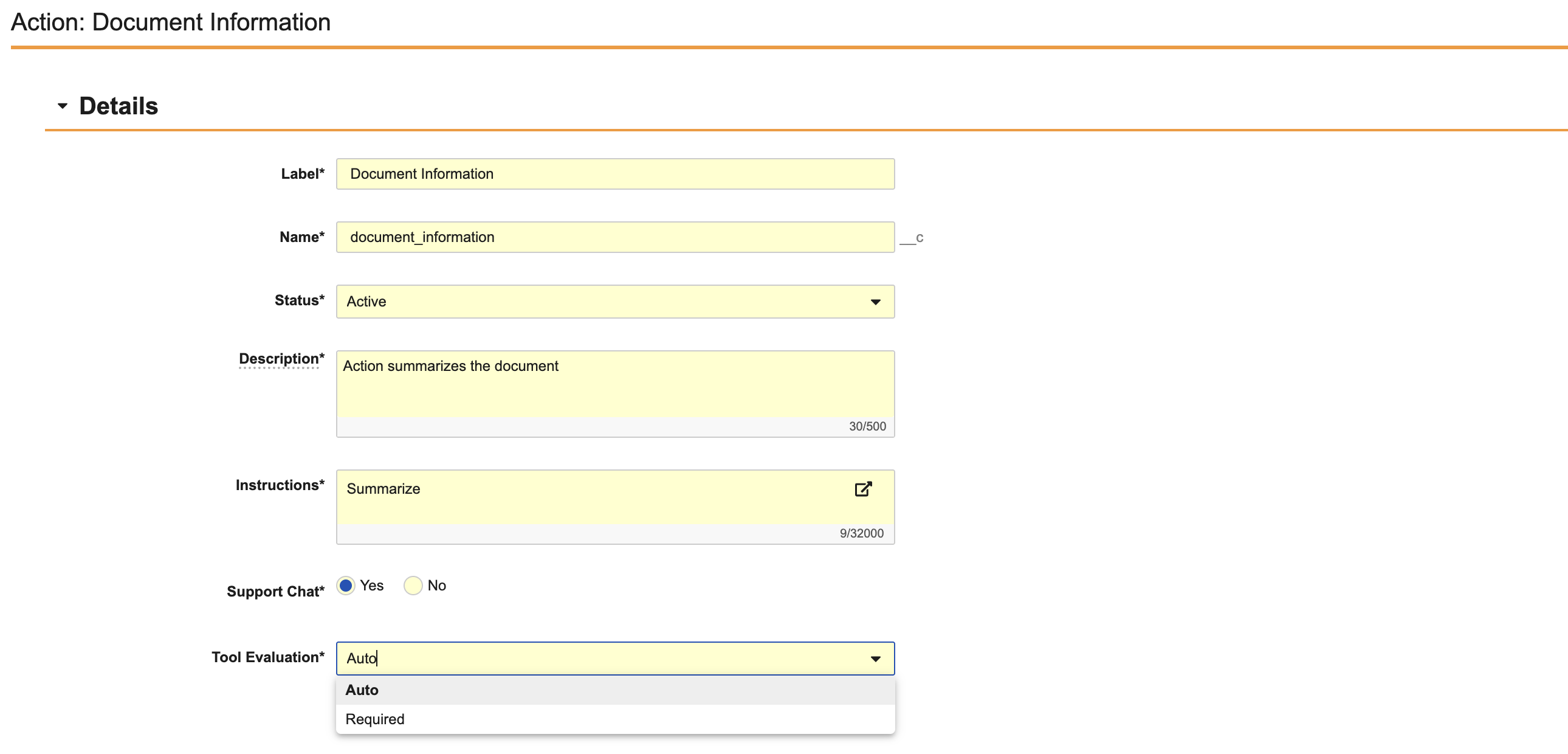
Once the Agent Action is saved, click Actions > Edit. Then, in the Tool Evaluation drop-down, select Auto to allow your LLM to decide when to execute the Agent Tool. Or, select Required to prompt your LLM to use the Agent Tool each time the Agent Action is executed.
Monitoring Agents & Agent Actions
You can monitor the usage of Agents and Agent Actions via the Agent Instance and Agent Action Execution objects in Business Admin > Objects. Agent Instance and Agent Execution Action records are created each time an Agent Action is executed.
Agent Instance records contain details on the Agent that initiated the Agent Action as well as information on the document or record where the Agent Action was initiated. For example, if the Agent Action was executed on a document, you can view the document’s Document Type ID, Document ID, and Document Type Label. The user who initiated the Agent Action is assigned as the Owner of the Agent Instance record.
Agent Action Execution records contain details on the Agent Action, such as the Agent Action Label, Execution Status, and Execution Time. Each record contains a link to the Agent Instance record associated with the Agent Action.
Agent Instance and Agent Action Execution records older than 60 days are deleted on a weekly basis. This deletion occurs even if the record is referenced on another object.
Limits
- You can create up to 500 custom Agents per Vault.
- An Agent can contain up to 20 Agent Actions, Agent Contexts, and Agent Tools.
- If Images is selected from the Include Document Content drop-down, only the first 20 pages are included.
Related Permissions
The following permissions control your ability to configure Agents:
| Type | Permission | Access Details |
|---|---|---|
| Admin | Admin: Agents: Read, Create, Edit, Delete | Ability to view, create, edit, and delete Agents. |
| Admin | Admin: Tools: Read, Create, Edit, Delete | Ability to view, create, edit, and delete Agent Tools. |
| Agents | All Agents: Execute | Ability to select all Agent Actions within Veeva AI Chat. |
| Agents | [Agent]: Execute | Ability to execute a specific Agent and their configured Agent Actions in Veeva AI Chat. |
| Objects | Agent Instance: Read | Ability to view the Agent Instance object. |
| Objects | Agent Action Execution: Read | Ability to view the Agent Action Execution object. |
| Applications | Vault Actions: Veeva AI Chat: Use Chat | Ability to view and interact with Veeva AI Chat. |