Important: The functionality described on this page is only available to early adopters.
Veeva AI Chat is an intuitive, context-aware assistant designed to help you with various actions in Vault, such as translating document text or summarizing an object record. Veeva AI Chat can identify exactly where you are in Vault, provide relevant actions for you to select, or proper responses to your questions and prompts. For example, when you are viewing an object record, Veeva AI Chat provides actions related to the record and answers any questions you have about the record.
Veeva AI Chat is integrated directly in your Vault, which means any data generated by AI Chat does not leave your Veeva Vault environment. This behavior ensures data stays secure, and user security is respected.
Accessing Veeva AI Chat
If you have the appropriate permissions, click the Veeva AI icon ( ) in the upper right of the Vault interface when viewing a document via the Doc Info page or an object record detail page.
Changing Chat Views
Veeva AI Chat offers three views that allow you to customize the placement of the chat window. If you close and reopen the chat window, AI Chat remembers your last view selection.
Full View
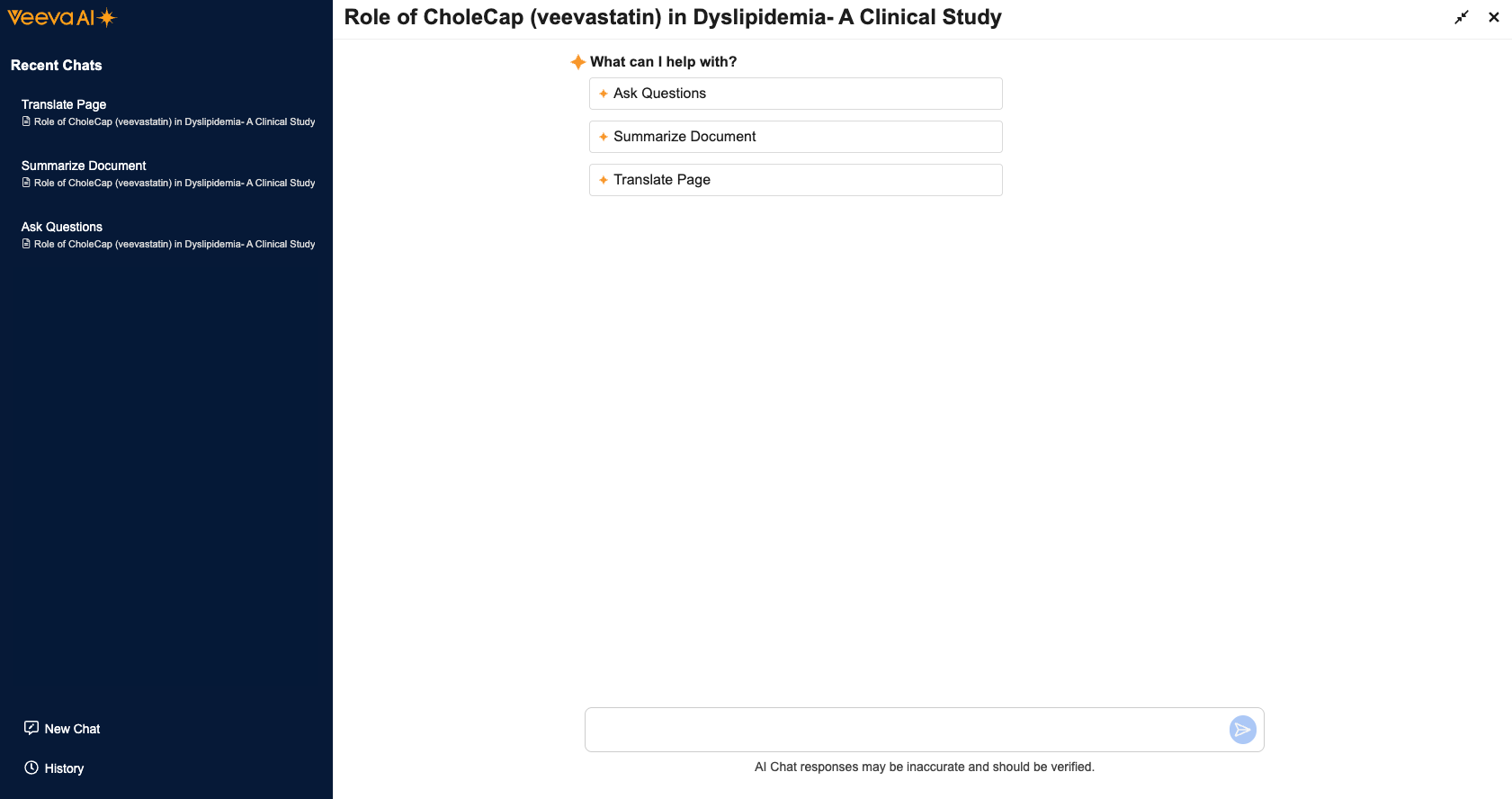
The Veeva AI Chat window opens in Full View by default. In this view, the chat window covers your entire Vault page and is split into a left panel and a main chat area. The left panel provides options to access your most recent chats via the Recent Chats list, begin a new conversation via the New Chat button (), and access your full chat history via the History button (). The main chat area allows you to start a new conversation by selecting an action or asking a question in the text entry field at the bottom of the window.
Panel View
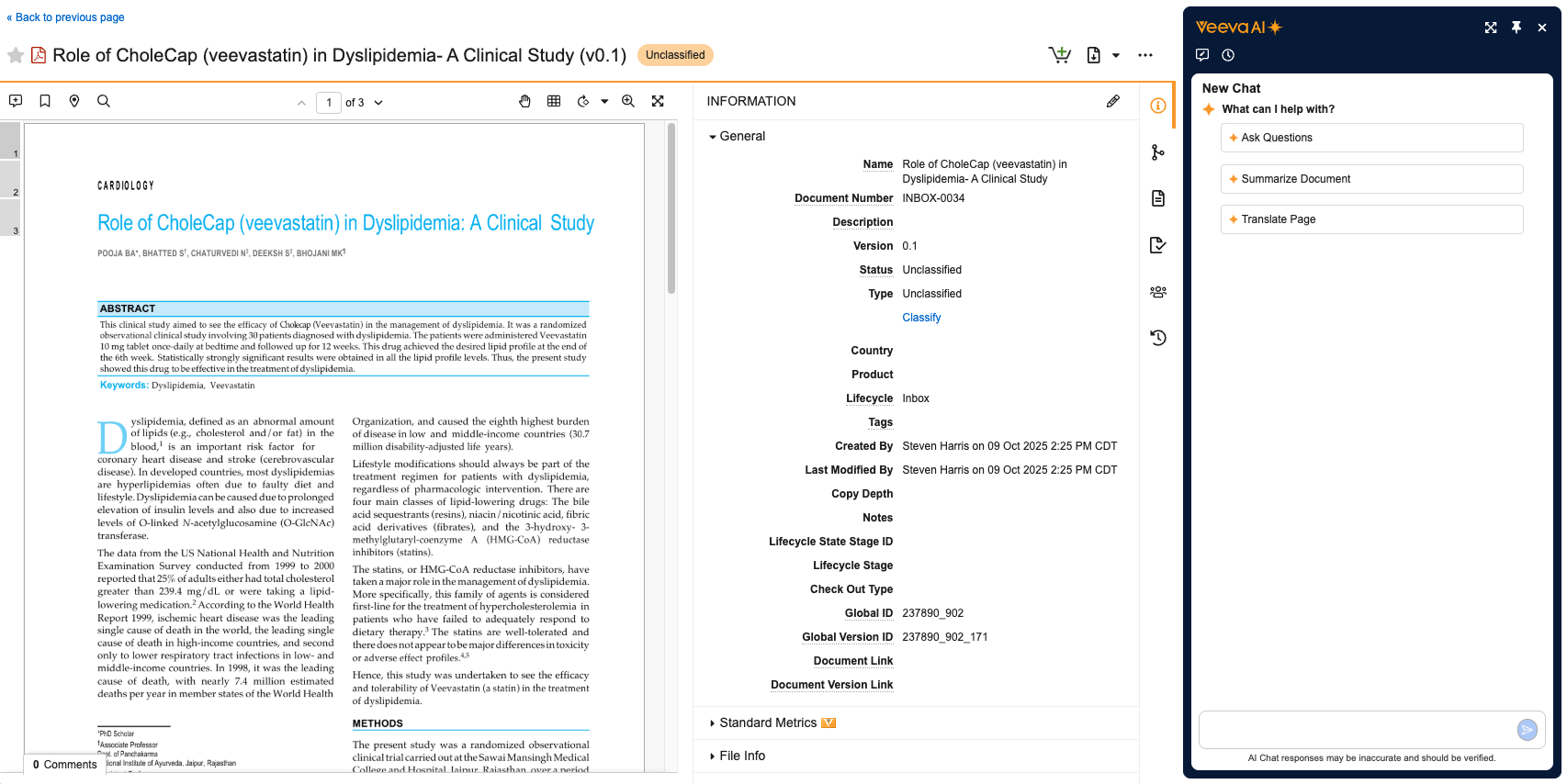
Click Minimize () at the top right of the Full View to access Panel View. This view pins the AI Chat window to the right side of your current Vault page. Panel View also shrinks your Vault page to allow the AI Chat window to fit on screen. In addition to the New Chat and History options available in Full View, Panel View offers the following options:
- Click Maximize () to return to Full View.
- Click Pin () to access Float View.
- Click or AI Chat () to close the AI Chat window.
Float View
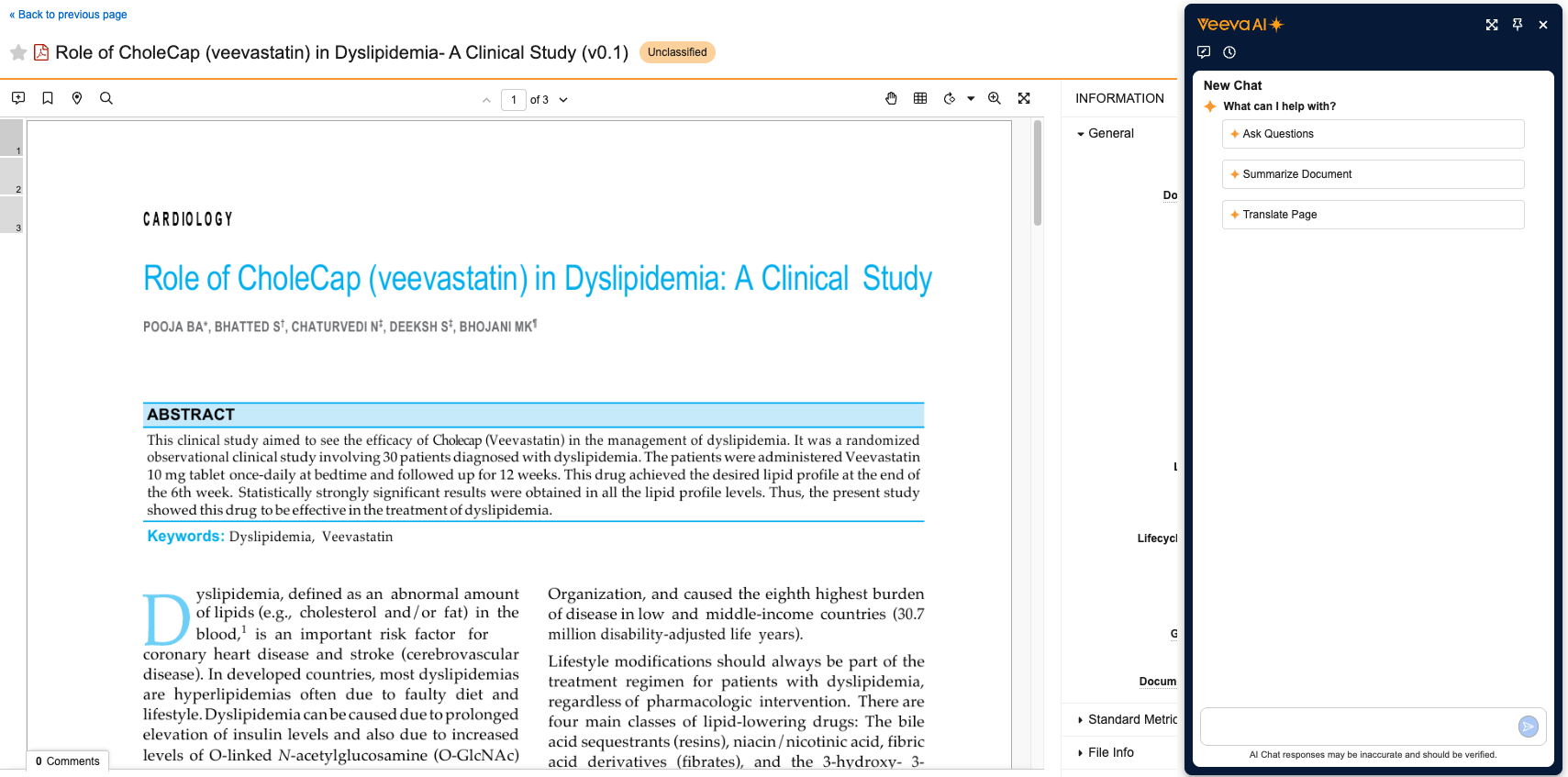
Float View is similar to Panel View, but unpins the AI Chat window so that your Vault page returns to the normal width. In this view, the AI Chat window covers any content on the right side of the Vault page.
Using Actions
You can start a conversation with Veeva AI Chat by selecting an action in the chat window. Actions are split into document actions and object record actions. If enabled by an Admin, you can use the following default document actions:
- Ask Questions
- Summarize Document
- Translate Page
You can also use the following default object record actions if enabled by an Admin:
- Ask Questions
- Summarize Record
- Translate Record
You may have access to additional document and record actions as configured by an Admin or based on your application. AI Chat displays document actions based on the document type, subtype, and classification. Record actions are based on the object and record ID. You cannot open Veeva AI Chat if no actions are configured for the document or record you’re viewing.
Note: If Veeva AI Chat takes longer than expected to respond, you can click Cancel to cancel the action. In addition, if your conversation reaches its maximum size, you must start a new chat.
Ask Questions
The Ask Questions action allows you to ask questions about a document or record. For example, if you’re viewing a Cholecap marketing brochure, you could ask “What are the benefits of Cholecap?” AI Chat will respond with the benefits listed in the brochure. Depending on the action’s configuration, you could also ask questions about related information that’s not in the document. Using the Cholecap marketing brochure, you could ask, “Are there any drugs that compete with Cholecap?” If configured to do so, the Agent will respond with a list of competing drugs that are not listed in the document.
You can also ask questions without selecting Ask Questions, but AI Chat may prompt you to select an action based on your question.
Summarize Document & Summarize Record
The Summarize Document and Summarize Record actions summarize the content in a document or object record respectively. This action alleviates the need to read through lengthy documents or complex records to gain an understanding of the data included.
Translate Page & Translate Record
The Translate Page action translates a page from a document in your Library while Translate Record translates data in an object record. When selecting either action, AI Chat may ask you to provide the target language. In addition, Translate Page requires you to provide the number of the page or pages you wish to translate.
Accessing Chat History
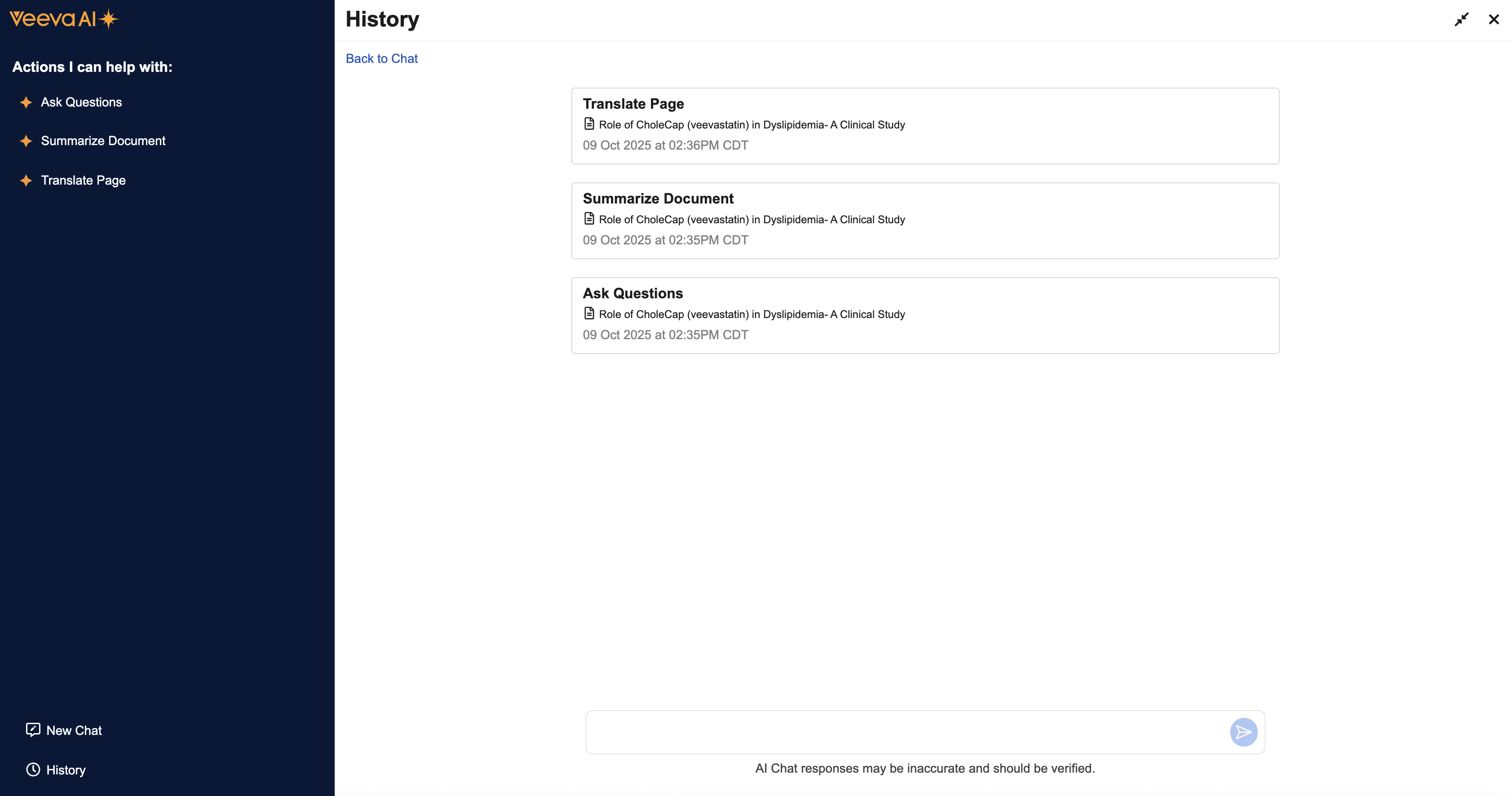
You can access your chat history by clicking History in Full View or the History icon () in Panel View or Float View. AI Chat retains all conversations for 30 days. The chat history lists your conversations from most recent to least recent. Each conversation is titled using either your last prompt or question, the action description, or last action response. Click a conversation in the list to navigate to the Vault page where it was initiated and open Veeva AI Chat exactly where you left off.
Switching Conversations
When you open a document or object record, Veeva AI Chat remembers the most recent conversation and picks up where you left off. For example, if you select Summarize Record and navigate to a document in your Library, you can continue the Summarize Record conversation when you return to the record. If there are no existing conversations on a record or document, a new chat is initiated with available actions.
The conversation switching behavior is only available if enabled by an Admin. If not enabled, your most recent conversation always displays no matter where you navigate in Vault. For example, if you select Summarize Record and navigate to a document with no existing conversations, the Summarize Record chat continues to display in the AI Chat window.
Asking Questions Using the Text Entry Field
You can initiate and continue conversations with Veeva AI Chat by asking questions in the text entry field without selecting an action. You can also write your question as a statement, which will return the same type of response. In some cases, Veeva AI Chat may prompt you to select an action, such as Ask Question or Translate Page, based on your input.
You can only ask questions related to the document or object record you’re viewing. For example, if you’re viewing a document about the drug Cholecap, you cannot ask questions about your user profile or workflow tasks.
AI Chat can provide answers in the language of the entered question or prompt. For example, if you ask the above question or prompt in French, AI Chat returns the response in French. You can ask AI Chat to return the response in any Vault supported language.
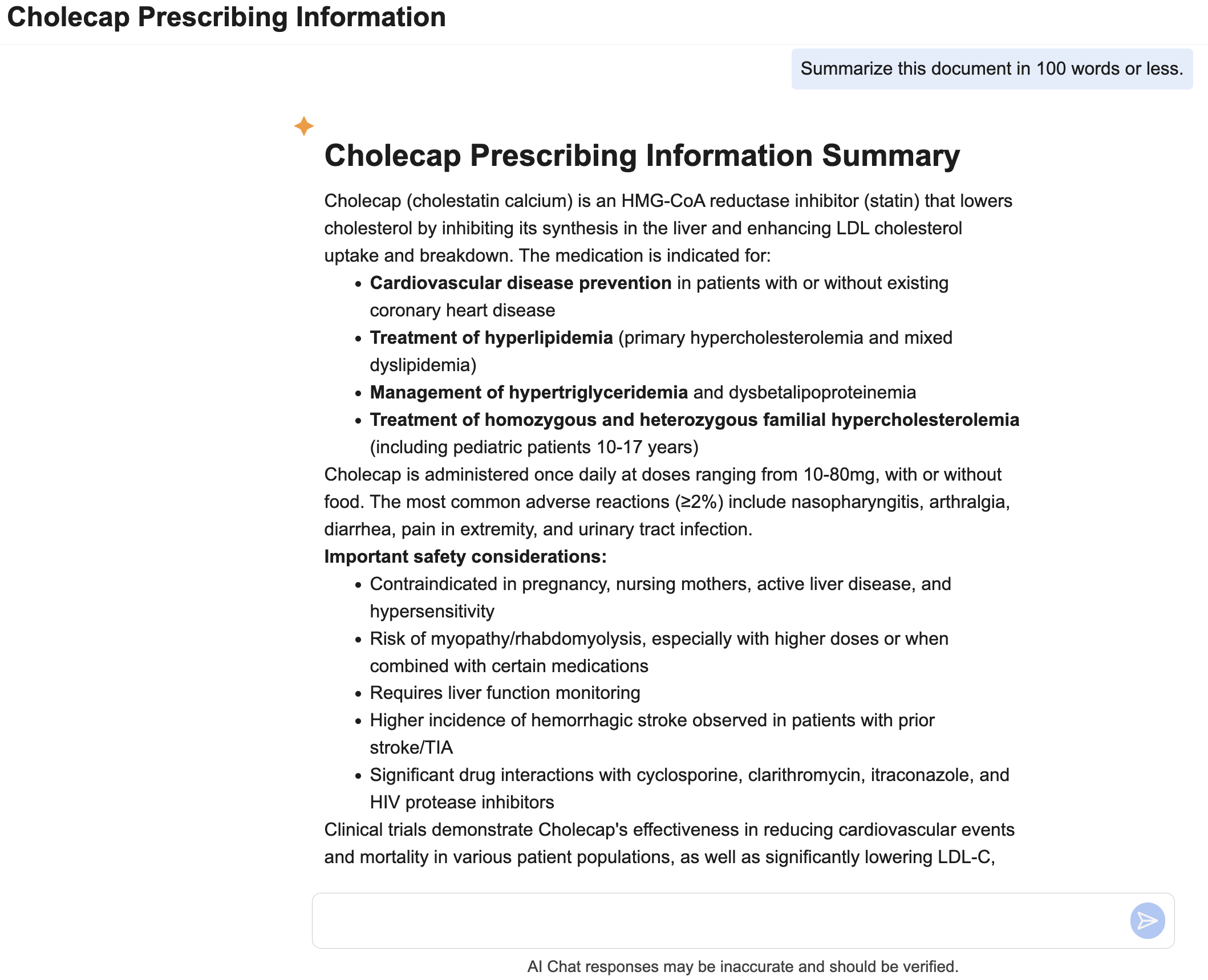
When a response is returned for an action, you can extend the action by asking a question or or writing a statement in the text entry field. For example, after AI Chat executes a Summarize Document action, you could write, “summarize this document in 100 words or less”.
Related Permissions
The following permissions control your ability to view and interact Veeva AI Chat:
| Type | Permission Label | Controls |
|---|---|---|
| Security Profile | Applications: Vault Actions: Veeva AI Chat: Use Chat | Ability to view and interact with Veeva AI Chat. |
| Security Profile | Agents: [Agent]: Execute | Ability to view and select actions in Veeva AI Chat. |
| Security Profile | Agents: All Agents: Execute | Ability to select all actions within Veeva AI Chat. |