Important: The functionality described on this page is only available to early adopters.
Vault offers multiple methods to track and monitor usage and performance of agents, agent actions, and LLM tokens. You can use this information to analyze agent performance and understand token consumption amongst agent actions.
Using Agent Instance & Action Execution Objects
You can monitor the usage of agents and agent actions via the Agent Instance and Agent Action Execution objects in Business Admin > Objects. Agent Instance and Agent Execution Action records are created each time an agent action is executed. Agent Instance and Agent Action Execution records older than 60 days based on their creation date are deleted on a weekly basis. This deletion occurs even if the record is referenced on another object.
Agent Instance Object
Agent Instance records contain details on the agent that initiated an agent action and information on the document or record where the agent action was initiated. For example, if an agent action was executed on a document, you can view the document’s Document Type ID, Document ID, and Document Type Label. The user who initiated the agent action is assigned as the Owner of the Agent Instance record. In addition, you can view general details on the agent, such as the Agent Label, Agent State, and Connection ID.
The Connection API Name field displays the API Name of the LLM connection associated with the agent. For example, a Veeva AI Advanced connection displays veeva_ai_llm__sys. You can use this information to build reports that identify specific LLM connections. You may need to add the Connection API Name field to the record’s layout.
Agent Action Execution Object
Agent Action Execution records contain specific details on the agent action, such as the Agent Action Label, Execution Status, and Execution Time. Each record contains a link to the Agent Instance record associated with the agent action.
The following Agent Action Execution object fields are important to note:
- Input Tokens, Output Tokens, and Total Tokens: These fields represent the total amount of tokens consumed by the agent action. Each field takes into account all requests related to the agent action’s execution, such as agent tool calls and retries due to a failed agent tool call. In some cases, these fields may not populate a value when the Agent Action Execution record is initially created and pending execution.
- Execution Start Date: UTC date and time the agent action execution was initiated. In some cases, this date and time may differ from the record’s Created Date.
- Effective Date: UTC date and time the record is ready for aggregation in the Daily Agent Action Activity object. The Effective Date is not populated until the Execution Status, Input Tokens, Output Tokens, and Total Tokens fields contain a value. In some cases, the time in the Effective Date may differ from the Execution Start Date time.
Monitoring Daily Agent & Agent Action Activity
The Daily Agent Activity and Daily Agent Action Activity objects summarize all agent and agent action activity from the previous day. Records are created daily based on the UTC time zone of the Effective Date in the Agent Action Execution object. For example, agent and agent activity for October 3 is summarized in the daily activity objects if the Effective Date is between 10/03/2026 00:00:00 UTC - 10/04/2026 23:59:59 UTC.
Vault never deletes Daily Agent Activity and Daily Agent Action Activity records as opposed to the 60-day limit of Agent Instance and Agent Action Execution records.
Daily Agent Activity
Daily Agent Activity records summarize daily agent activity and combine certain details from the Agent Instance and Agent Action Execution records. For example, the Input Tokens field is pulled from the Agent Action Execution record. You can use the Daily Agent Activity records to review and analyze specific agent activity within a day, such as number of agent instances that occurred and the total number of tokens used.
In addition, you can use the Connection API and Connection Label fields to analyze and track token usage by LLM connection. For example, you can break down token usage by Veeva AI-provided LLM and custom-created LLM connections.
Daily Agent Action Activity
Daily Agent Action Activity records provide summarized details on all agent actions executed within a day. For example, you can view the median and average execution time, the 90th percentile of execution time, and the total number of successful and failed agent action executions.
Tracing Agent Actions
Admins can initiate trace sessions that allow them to monitor details related to individual agent actions and the LLM requests involved in the agent action’s execution. This level of monitoring is helpful when performing iterative tests and supports troubleshooting issues that cause agent actions to return inaccurate responses. Admins with the Admin: Logs: Agent Traces permission can initiate trace sessions on themselves from Veeva AI Chat or on individual users from the Admin logs. This permission also allows users to view the agent instructions and objectives in the trace details.
At the end of each trace session, Admins can download a JSON trace details file that includes details on the agent actions executed and requests sent to the LLM. Some data in the Content Blocks section of the JSON trace details file are only visible to Vault Owners and Agent Instance Owners, such as extracted document text and agent tool inputs.
The JSON trace details file uses the following structure:
- Trace Session ID: The Trace Session ID refers to the group of agent actions executed during the trace session. The Trace Session ID can be associated with a Chat ID or the initiating agent action, such as Quick Check.
- Agent Action Traces: Refers to the agent actions executed during the trace session. Each agent action and their requests are listed by an Agent Action Execution ID.
- Requests: Refers to all the request information sent to the LLM during the agent action execution. This information includes details such as the Request ID, execution time, and maximum number of input and output tokens. The Request ID refers to the request or response from the LLM. The request may or may not have a conversation history. An agent action execution can include multiple requests, such as when an agent tool is used.
- Messages: Refers to the agent action details sent to the LLM, such as the agent action instructions, objective, and context.
- Role: Refers to the origin of the message. System refers to the agent objective, User refers to the Veeva AI Chat or agent tool request, Assistant refers to the Veeva AI Chat or agent tool response.
- Content Blocks: Refers to the type of content, summary, and details included in the message sent to the LLM.
- Content Type: Refers to the type of content used in the request, such as
TEXTorFILE_REF. - Summary: A message summarizing the content, such as Agent Objective, Agent Action Instructions, Context, or Assistant Response.
- Details: Displays the text or file reference used in the message. For example, “I’m sorry, but I cannot respond to this request.” may display for an Assistant Response from Veeva AI Chat. Only the agent instance owner and Vault Owner can view this information. Otherwise, “details displays You cannot access this information”.
- Content Type: Refers to the type of content used in the request, such as
- Content Blocks: Refers to the type of content, summary, and details included in the message sent to the LLM.
- Role: Refers to the origin of the message. System refers to the agent objective, User refers to the Veeva AI Chat or agent tool request, Assistant refers to the Veeva AI Chat or agent tool response.
- Messages: Refers to the agent action details sent to the LLM, such as the agent action instructions, objective, and context.
- Requests: Refers to all the request information sent to the LLM during the agent action execution. This information includes details such as the Request ID, execution time, and maximum number of input and output tokens. The Request ID refers to the request or response from the LLM. The request may or may not have a conversation history. An agent action execution can include multiple requests, such as when an agent tool is used.
- Agent Action Traces: Refers to the agent actions executed during the trace session. Each agent action and their requests are listed by an Agent Action Execution ID.
Important: The format of the JSON trace details file is intended for troubleshooting agent action executions. Be aware that this format may change in future releases.
Executing Trace Sessions in Veeva AI Chat
To initiate a trace session in Veeva AI Chat:
- Open Veeva AI Chat in Full View.
- Select the Start Agent Activity Trace icon (
 ).
). - A yellow banner with the text “Trace started” displays at the top window. In addition, a Tracing… icon displays (
 ) to show the session is in progress. Begin executing agent actions. You can only execute up to five agent actions per trace session. The trace session automatically ends if you execute over five agent actions.
 - After you have finished executing agent actions, click the stop button on the Tracing… icon to stop the session.
- Click Download in the Agent Trace Activity dialog to download a JSON file of the trace session. This dialog displays the trace date and time and Trace Session ID.
Important: Trace sessions initiated from the Veeva AI Chat window are not stored in Admin > Logs > Agent Traces.
Executing Trace Sessions from Admin Logs
Admins with the Admin: Logs: Agent Traces permission can initiate trace sessions for specific users from Admin > Logs > Agent Traces pages. To initiate a trace session for a specific user:
- Navigate to Admin > Logs > Agent Traces.
- Click Create.
- Enter a Name for the trace session.
- Select a user from the Trace for User drop-down.
- Click Save.
A trace session record is created and active for the selected user. Each time the user executes an agent action, such as through Veeva AI Chat or API, a new log is created under the Trace Details section. Click the icon () in the Download column to download a JSON trace detail file with data on the agent action execution. Click Download All to download all agent action traces in one JSON file.
Each trace session is available for 30 days.
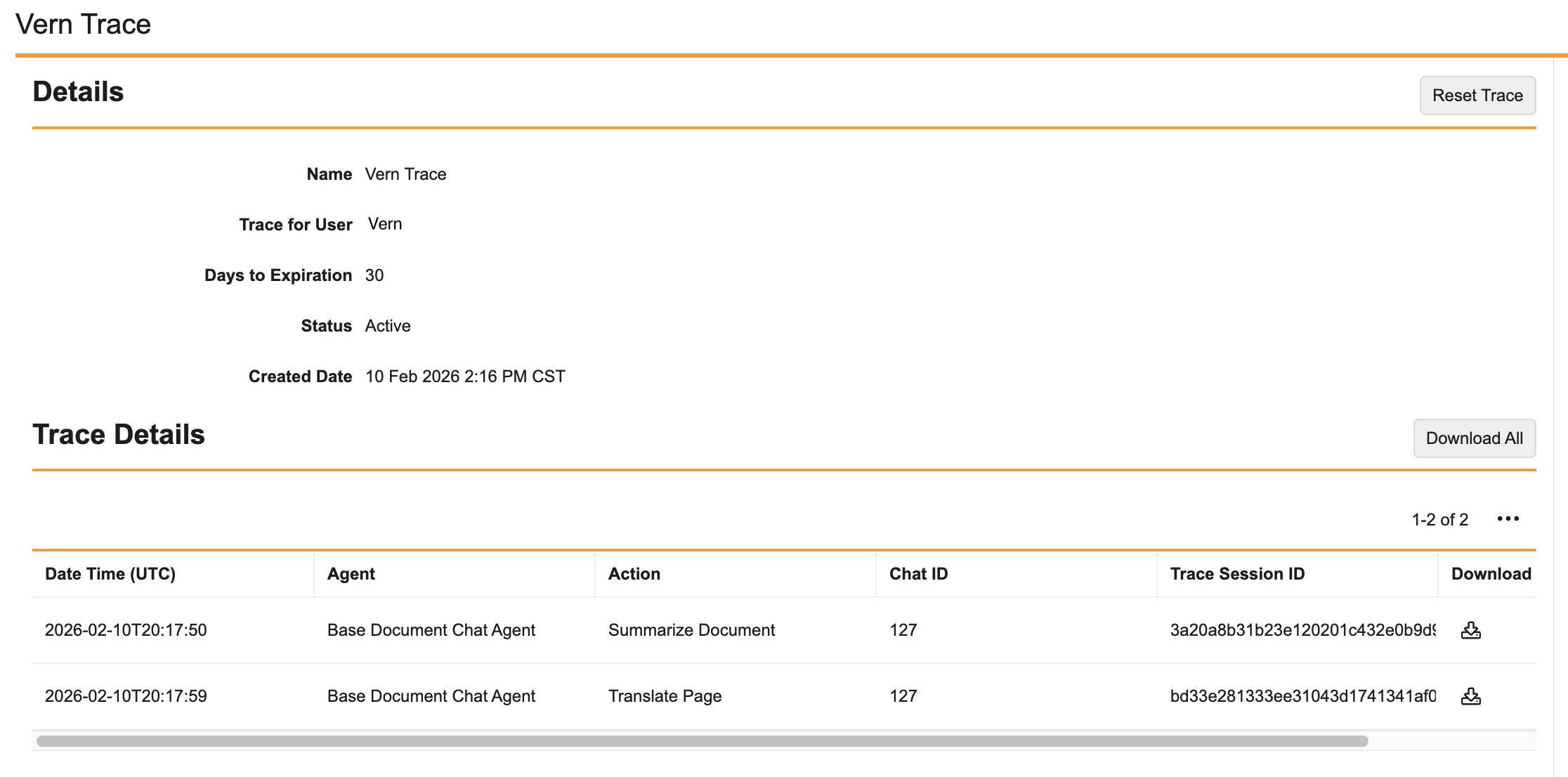
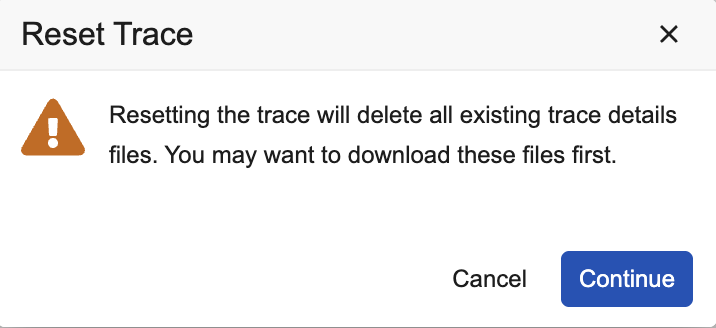
Click Reset Trace to erase all logs for the trace session and start over. This action also resets the Days to Expiration back to 30.
Note: If you set the Status to Inactive, the trace session stops.
Limits
Initiating a trace session through the Admin Logs includes the following limitations:
- You can only initiate one trace session per user.
- Up to 20 users can have a trace session initiated.
- Each trace session can trace up to 20 agent actions. In this case, you can click Reset Trace to trace other agent actions.
Tracking LLM Token Usage
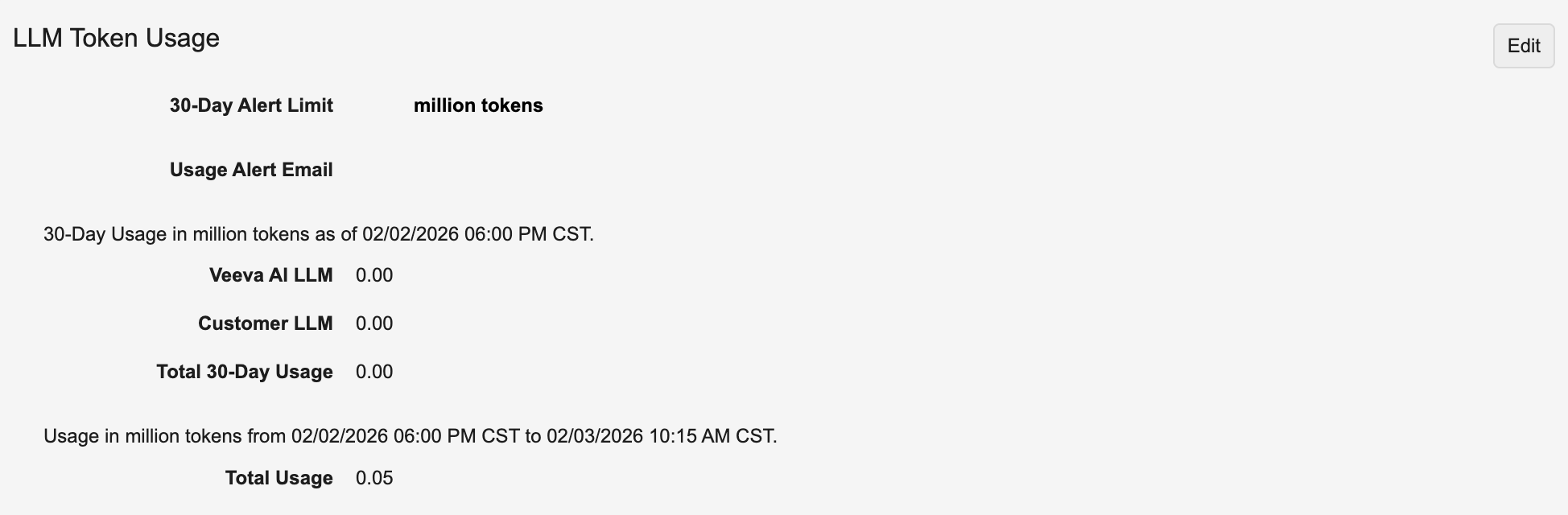
The LLM Token Usage section in Admin > Settings > Veeva AI Settings allows you to enter a maximum 30-day token usage limit in the millions. You can also provide an email to receive alerts when the limit is reached. You can use this information to keep track of and analyze monthly LLM token usage.
Email alerts are sent when the 30-day token usage is greater or equal to:
- 50% of the limit
- 75% of the limit
- 85% of the limit
- 95% of the limit
Vault sends weekly email alerts when token usage equals or is greater than 50%, 75%, or 85% of the 30-day limit. Vault sends a daily alert if the token usage exceeds 95% of the 30-day limit and an hourly alert if token usage exceeds five times the 30-day limit. Vault also sends alerts if a spike in daily token usage is detected in comparison with the daily average of the 30-day limit.
Vault reports token usage using two rounded decimal places. For example, 5,455,000 tokens becomes 5.46 in token usage fields.
Note: Vault evaluates weekly email alerts each Monday and sends the alerts based on the percentage of token usage.
LLM Token Usage Section
The LLM Token Usage section includes the following fields and sections:
- 30-Day Alert Limit: The amount of tokens in millions that usage cannot exceed. You can enter this value as an integer with no digits after the decimal place.
- Usage Alert Email: Email address that can receive limit alert emails.
- 30 Day Usage in million tokens as of [date and time]: The total amount of Veeva AI LLM (Veeva AI Basic and Veeva AI Advanced) and custom LLM tokens used in the past 30 days. The date and time value is updated daily at midnight and reflects the UTC time zone.
- Usage in millions of tokens from [date and time] to [date and time]: This section reports token usage by the hour on a daily basis. The first date and time reflect midnight of the current day while the second day and time reflect the day and time an hourly job runs to identify the current total LLM token usage.
The total of the Veeva AI LLM and Customer LLM tokens from the past 30 days should match the Total 30-Day Usage tokens.