 ## How to Set Behavior for Actions {#workflow-actions}
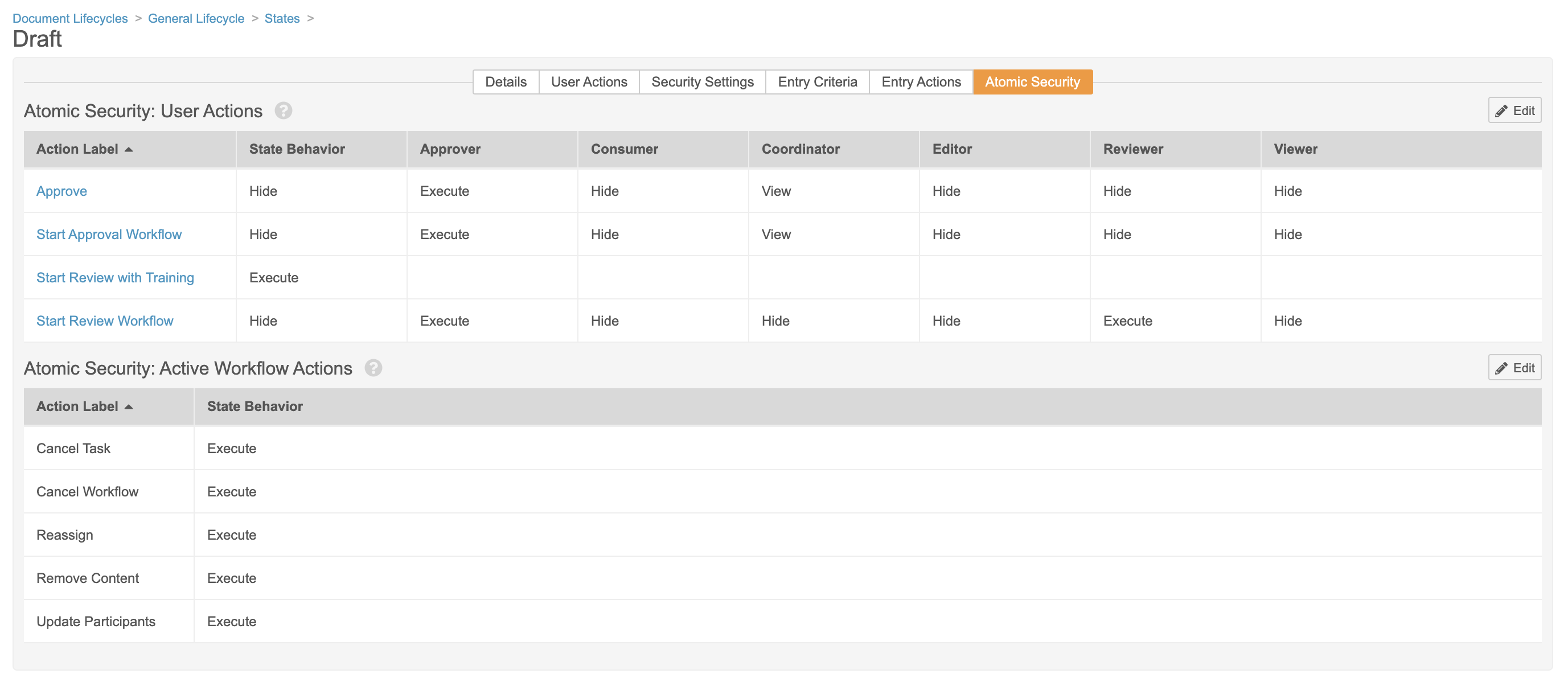
When configuring Atomic Security for document lifecycle states, you first set the default behavior and then overrides for specific roles. The default behavior will apply to any new roles created, and to any roles where an override is not set. If access to an action should be more restrictive, you would set the **State Behavior** to **Hide** or (for document lifecycle actions only) **View**, which ensures that only roles explicitly given access can execute the action. If access to an action should be less restrictive, you would set the **State Behavior** to **Execute**, which ensures that all roles have access unless explicitly prevented.
Remember that Atomic Security configuration happens within a single lifecycle state, so access to an action may be more or less restrictive based on the document's state.
Note that access to the **Cancel Task** and **Reassign Task** actions in single-document workflows depends on the options selected in the task configuration, rather than Atomic Security.
To set default and override behavior for workflow actions:
1. From the **Atomic Security** tab, click **Edit**.
2. Select a default **State Behavior** for each action.
3. Create overrides by clicking **+ Role Override**.
4. Within the _Search: Lifecycle Role_ window, click the green **+** icon for one or more roles. Click **OK** when finished.
5. In the grid, select an [override behavior][1] for each role.
6. Click **Save**. Changes to Atomic Security go into effect immediately.
### Behavior Options {#behavior}
When setting a default and override behavior, you see the following options:
* **Hide** will hide the action from users, preventing it from appearing in the workflow **Actions** menu.
* **View** (only available for document lifecycle actions) will allow users to see the option in the document **Actions** menu, but it will be grayed out and not clickable to prevent them from executing the action on a document.
* **Execute** will allow users to execute the action on a document.
## Related Permissions
The following permissions control access to Atomic Security configuration:
## How to Set Behavior for Actions {#workflow-actions}
When configuring Atomic Security for document lifecycle states, you first set the default behavior and then overrides for specific roles. The default behavior will apply to any new roles created, and to any roles where an override is not set. If access to an action should be more restrictive, you would set the **State Behavior** to **Hide** or (for document lifecycle actions only) **View**, which ensures that only roles explicitly given access can execute the action. If access to an action should be less restrictive, you would set the **State Behavior** to **Execute**, which ensures that all roles have access unless explicitly prevented.
Remember that Atomic Security configuration happens within a single lifecycle state, so access to an action may be more or less restrictive based on the document's state.
Note that access to the **Cancel Task** and **Reassign Task** actions in single-document workflows depends on the options selected in the task configuration, rather than Atomic Security.
To set default and override behavior for workflow actions:
1. From the **Atomic Security** tab, click **Edit**.
2. Select a default **State Behavior** for each action.
3. Create overrides by clicking **+ Role Override**.
4. Within the _Search: Lifecycle Role_ window, click the green **+** icon for one or more roles. Click **OK** when finished.
5. In the grid, select an [override behavior][1] for each role.
6. Click **Save**. Changes to Atomic Security go into effect immediately.
### Behavior Options {#behavior}
When setting a default and override behavior, you see the following options:
* **Hide** will hide the action from users, preventing it from appearing in the workflow **Actions** menu.
* **View** (only available for document lifecycle actions) will allow users to see the option in the document **Actions** menu, but it will be grayed out and not clickable to prevent them from executing the action on a document.
* **Execute** will allow users to execute the action on a document.
## Related Permissions
The following permissions control access to Atomic Security configuration:
|
Type |
Permission Label |
Controls |
|
Security Profile |
Document Lifecycles: Edit |
Ability to modify settings in the Atomic Security tab for document lifecycle states |
Note: Workflow Initiators and Coordinators have access to workflow actions regardless of permissions or Atomic Security Settings. Vault also bypasses Atomic Security for users with the standard Vault Owner security profile.