# Viewing Audit Trails

Vault provides a robust audit trail of all actions performed on a document or object record. Vault also allows you to export this information in order to facilitate reporting and filtering at a more granular level. The audit trail window displays the following:

* **Timestamp**: Date and time that the action was performed, adjusted to your own timezone. Timestamps also indicate the time of year an event occurred using daylight savings time. For example, audit trails in Vaults using the PST timezone show PST times during the fall and winter and PDT time during the spring and summer.
* **User Name**: Login name for the user who performed the action; this sometimes shows _System_ to indicate that the action was performed automatically by Vault. System actions include state changes and field updates performed as part of a workflow, as well as initiating an auto-start workflow.
* **Version**: (Document audit trail only) Version of the document on which the action occurred.
* **Event Description**: Description of the action that occurred, for example, _'tlee@veevapharm.com' was added to the 'Editor' field_. Note that when data changes, the description shows both the previous value and the new value.

See the complete list of [document audit events](/en/lr/30435/) and [object audit events](/en/lr/74202/).

<div class="note-border alert-info">
  <div class="alert alert-info" role="alert">
    <div><i class="far fa-info-circle"></i></div>
    <div class="alert-text">
      <p><strong>Note</strong>: Audit logs support a precision to one second. Events occurring within a single second may appear in an unexpected order.</p>
    </div>
  </div>
</div>


## How to Access Document Audit Trails {#access}

To open the document audit trail:

  1. From the **Actions** menu in the Library or Doc Info page, select **Audit Trail**. The audit trail information is displayed in a dialog box. Events appear in reverse chronological order, with the most recent events first.
  2. Optional: To change the [audit trail filter][5], select an option from the drop-down, or click **Add filter** to add additional filters. Click **Apply** to apply the filters..
  3. Optional: To [download the audit trail][1], select **Export to Text** or **Export to PDF** from the **Actions** menu.
  4. When finished viewing the audit trail, click **Close**.

## How to Access Object Record Audit Trails {#object-record}

To open the object record audit trail:

  1. Navigate to the object record list or the record detail page through **Business Admin** or a custom tab.
  2. From the record's **Actions** menu, select **Audit Trail**. The audit trail information is displayed in a dialog box. Events appear in reverse chronological order, with the most recent events first.
  3. Optional: Select an object in the **Include related objects** drop-down to view the [related object record audit trail][4]. Click **Apply** to display the related records in the audit trail.
  4. Optional: To change the [audit trail filter][5], select an option from the drop-down, or click **Add filter** to add additional filters. Click **Apply** to apply the filters.
  5. Optional: To [download the audit trail][1], select **Export to Text** or **Export to PDF** from the **Actions** menu.
  6. When finished viewing the audit trail, click **Close**.

Vault does not audit individual field values for newly created records. For example, the audit trail for a new _Product_ record only includes a single entry, and the _Event Description_ is _Product: CholeCap created_. We recommend [exporting the current record](/en/lr/3622/) along with the audit trail to ensure a complete export of all values. When a user deletes an object record, the audit trail captures all field values.

Vault enforces both [Field Level Security](/en/lr/39108/) and [Atomic Security](/en/lr/47850/) when users view audit trails for object records and included related objects records. If a user cannot see a field due to Field Level Security, the field is hidden in the audit trail. If a user cannot see a field due to Atomic Security based on the current record state and current user role, the field is hidden in the audit trail.

### Related Object Record Audit Trails {#expanded-audit-trail}

Users can view an audit trail that includes audit events for related object records. The _Audit Trail_ dialog displays an _Include related objects_ drop-down, from which you can select any object that has an inbound relationship to the primary object. If you selected **Include related objects** in a previous audit request, Vault remembers your selection and displays these object records by default.

After you select a related object and click **Apply**, Vault displays the audit trail for the primary object record, as well as 100 records for each related object that you included, up to 10 related objects. If there are more than 100 records for a related object, or if more than ten related object records are stored in file storage, Vault displays a message prompting you to [export the audit trail][1] to view the full audit history for the selected related objects. The _Record_ column shows the object label and the object record in which the event occurred. Note that related record audit trail requests covering a period of four or more months may take longer to display.

## Interpreting Audit Trail Information

It is important to understand these items when reviewing audit trail information.

### Yes/No Fields

Vault allows _Yes/No_ fields to display as a checkbox or radio buttons. These options do not affect the way the data is stored or the way the data displays in the audit trail:  

* **Yes** or selected fields = True
* **No** or cleared fields = False

### Empty Fields

Empty fields (blank or null) display as double quotes (`""`) in the audit trail.

## Filtering Audit Trails {#filtering-audit-trails}

By default, the audit trail is filtered by **Timestamp** with a date range of **all**.

To change or add filters for an audit trail:

  1. Optional: To filter by event date and time, select **Timestamp** from the filter dropdown, select **is in the last** or **is in the range**, and select the desired date range.
  2. Optional: To filter by event type, select **Event** and select the desired events.
  3. Optional: To filter by the user associated with the event, select **User** from the filter drop-down and select the desired users. You can select multiple individual users, but not user groups.
  4. Optional: Click **Add filter** to add any of the remaining filters (**Timestamp**, **Event**, or **User**) and update their filter criteria as needed.
  5. Click **Apply** to apply the selected filters and view the matching audit trail events.

### Filtering Events for Field Value Changes

When filtering by **Event** in the object audit trail or individual record audit trail, the **Edit** event filters audit entries that capture a change in value to a field. However, Long Text and Rich Text fields are not categorized under the same **Edit** event and will not be displayed with this filter. To see edit events related to these fields, you must additionally filter **Event** with **Rich Text** and **Long Text**.

## Exporting Audit Trails {#exporting}

To export the audit trail, select **Export to Text** or **Export to PDF** from the **Actions** menu in the audit trail dialog box. Audit trails export as .TXT files when the [multilingual document handling](/en/lr/13272/) setting is enabled, and as .CSV files when this setting is disabled.

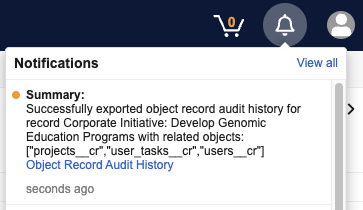
When exporting [related object record audit trails][4], Vault sends a [notification](/en/lr/71440/) once the export is complete, and you can download the export file from the notification:

<a href="https://platform.veevavault.help/assets/images/platform_object_related_record_audit_trail_export_notification.png" data-lightbox="images" data-title="" data-alt="Related object record export notification">
  <img class="docimage" src="https://platform.veevavault.help/assets/images/platform_object_related_record_audit_trail_export_notification.png" alt="Related object record export notification" style="max-width: 500px;"  />
</a>

### CSV Exports

The exported .CSV file shows information in a slightly different format. For example, the .CSV file separates the details of each event into individual columns.

### PDF Exports

When you export as PDF, Vault adds page numbers and a cover page to the PDF. All audit histories and audit trails use the same _Audit Export Cover Page_ template.

<div class="note-border alert-info">
  <div class="alert alert-info" role="alert">
    <div><i class="far fa-info-circle"></i></div>
    <div class="alert-text">
      <p><strong>Note</strong>: If an export process exceeds ten minutes, Vault displays a timeout error and instructs you to refine your search criteria.</p>
    </div>
  </div>
</div>


## Document Usage Metrics

In addition to the audit trail, Vault includes a [_Document Usage_ object](/en/lr/42968/), which captures more comprehensive document usage metrics than Vault's standard document auditing allows. Each time a user performs specific actions on documents in their _Steady_ state, such as views, downloads, copies, and rendition downloads, Vault automatically creates a new, non-editable _Document Usage_ object record.

## Related Permissions

The following permissions affect your access to audit trails:

|Audit Trail|Permission|
|---|---|
|All|To view the audit trails, you need the _Application: Audit Trail: View_ permission.|
|All|To export audit trails, you need the _Application: Audit Trail: Export_ permission.|
|Document Audit Trail|For the document audit trail, you must be in a role on the document that grants the _View Document_ permission.|
|Object Record Audit Trail|For the object audit trail, you must be able to access the object record detail page. If the object uses custom sharing rules, you'll need to be in a role on the object record. If not, your security profile must grant view access to the object record through Admin or through a custom tab.|
|Object Record Audit Trail|To view the Audit Trail action, you need the _Objects: [Object]: Audit Trail: View_ permission. This permission only applies if an Admin configures the object to use [Action Level Security](/en/lr/43127/#action_level_security) on the Audit Trail action.|
|Object Record Audit Trail|To use the Audit Trail action, you need the _Objects: [Object]: Audit Trail: Execute_ permission. This permission only applies if an Admin configures the object to use [Action Level Security](/en/lr/43127/#action_level_security) on the Audit Trail action.|

 [1]: #exporting
 [4]: #expanded-audit-trail
 [5]: #filtering-audit-trails