# Action Bar, All Actions & Workflow Actions
Vault uses an action bar and _All Actions_ menu to display and organize available actions.
## Action Bar
The action bar continuously learns how each user works with documents and records, and shows their four most frequently-used actions in the upper right of the document or record.
 ## All Actions Menu
The **All Actions** menu (
## All Actions Menu
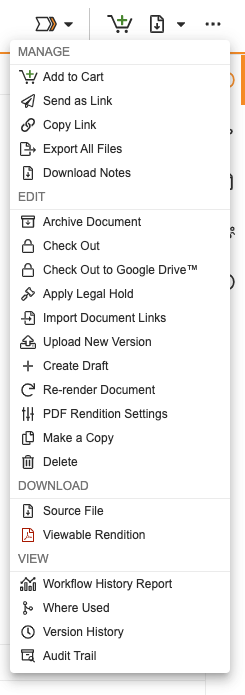
The **All Actions** menu ( ) is available on the far right of the action bar, via the ellipsis icon. This menu displays all actions you have available for the selected document or record, including **Send as Link**, **Where Used**, and **Version History**.
Available items in the **All Actions** menu vary by Vault configuration, lifecycle state, _Create_ permissions, your license type, your security profile, and your role-based permissions on the document or record.
Menu items are divided into four categories: **Manage**, **Edit**, **Download**, and **View**. Each section contains a list of actions that you can perform on the selected document or record.
) is available on the far right of the action bar, via the ellipsis icon. This menu displays all actions you have available for the selected document or record, including **Send as Link**, **Where Used**, and **Version History**.
Available items in the **All Actions** menu vary by Vault configuration, lifecycle state, _Create_ permissions, your license type, your security profile, and your role-based permissions on the document or record.
Menu items are divided into four categories: **Manage**, **Edit**, **Download**, and **View**. Each section contains a list of actions that you can perform on the selected document or record.
 ## Workflow Actions Menu
To the left of the action bar, the **Workflow Actions** menu (
## Workflow Actions Menu
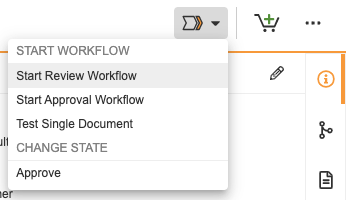
To the left of the action bar, the **Workflow Actions** menu ( ) provides quick access to any user actions, workflow actions, or state change actions defined for this lifecycle state.
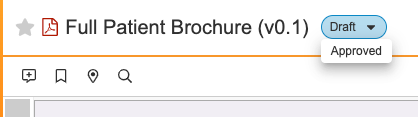
 If state change actions are available, you can click the lifecycle state badge to select the next lifecycle state for your document or record.