# Using the Visual Checklist Designer

The Visual Checklist Designer allows you to create, edit, and delete checklist sections, questions, and answers, all from one page. This tool offers an alternative to using the <a href="/en/gr/50438/">Checklist Design Loader</a>
 or the <a href="/en/gr/52824/">traditional checklist design</a>
 options. It also prevents the need to manage a separate object record for each modification to the checklist, such as adding dependencies, questions, and reference documents. For each <a href="/en/gr/47738/#enabling">Checklist Type</a>
, you can configure which optional fields to display in the Visual Checklist Designer for each _Section_, _Question_, and _Available Answer_ section. 

The Visual Checklist Designer is the default view when you create and save a new <a href="/en/gr/47738/">Checklist Design record</a>
 or select a _Checklist Design_ record from the <a href="/en/gr/44069/#object-record-list-page">object record list page</a>
.


<div class="note-border alert-info">
  <div class="alert alert-info" role="alert">
    <div><i class="far fa-info-circle"></i></div>
    <div class="alert-text">
      <p><strong>Note</strong>:  If you do not have the <a href="/en/gr/537448/#related-permissions">appropriate permissions</a>
, the Visual Checklist Designer displays in <a href="/en/gr/537448/#view-mode">View mode.</a>
 In this case, select the <strong>View Record Detail Page</strong> icon to return to the <em>Checklist Design</em> record to configure necessary fields and related records.</p>

<p>If the <em>Checklist Design</em> record is not in <em>Draft</em>, the Visual Checklist Designer also displays in View mode even if you have the correct permissions to access and manage checklists.</p>
    </div>
  </div>
</div>


## Navigating the Visual Checklist Designer

The Visual Checklist Designer contains various options for assembling a checklist specific to your needs:

### Menu Bar

The top right corner of the Visual Checklist Designer contains the following options:
* **Language**: Allows you to add or manage translations for the _Checklist Design_.
* **Reorder Sections**: Opens a new page that allows you to manually reorder the sections of the checklist.
* **View Record Detail Page**: Returns you to the _Checklist Design_ record detail page.
* **Preview Design**: Opens a preview of the checklist.

### Left Navigation Pane

The left navigation pane shows all sections within your checklist. Each section displays as a link that directs you to the section and its related content. Click the **Add Section** button to add _Introduction_ and _Question_ sections to the checklist.

<div class="note-border alert-info">
  <div class="alert alert-info" role="alert">
    <div><i class="far fa-info-circle"></i></div>
    <div class="alert-text">
      <p><strong>Note</strong>: If the <em>Checklist Design</em> record contains no <em>Section Design</em> records, Vault automatically creates a <em>Question Section Design</em> record when the Visual Checklist Designer is launched.</p>
    </div>
  </div>
</div>


### Main Area

The middle of the page contains editing options for your _Question_ and _Introduction_ sections. When you first access the Visual Checklist Designer, a default _Question Section_ displays with a blank question you can edit.

## Designing Introduction & Question Sections

_Introduction_ and _Question_ sections provide many options for designing your checklist. For example, you can create headers for your checklist or include a variety of question types, such as text, multiple choice, and date selection questions. You can also edit an _Introduction Section_ by clicking the section itself in the middle of the page. You can <a href="/en/gr/47738/#visual-checklist-designer-fields">configure</a>
 optional fields from the _Checklist Types_ page to display on the checklist. See below for information on designing each type of section.

### How to Create a Section

To create a new section:

 1. Click the **Add Section** button in the left navigation pane. 
 2. In the _Create Section_ window, select **Question Section** or **Introduction Section** from the **Section Design Type** drop-down. 
 3. If you select **Question Section**, enter a **Name** for the section. If enabled on the **Checklist Types** page, you can enter a **Description**, **Weight %**, or select **Yes** under **Randomize Questions** to randomize the order of questions in the section displayed to respondents.
 4. If you select **Introduction Section**, enter a **Name** and **Header** for the section.
 5. Click **Create**.

### How to Design an Introduction Section

The standard field available for an _Introduction Section_ is the _Header_. The _Header_ displays at the top of the checklist at all times. Choose a header that applies to the type of checklist you're creating. An optional _Description_ field may display in the _Create Section_ dialog if configured from the Checklist Types page.

<div class="note-border alert-info">
  <div class="alert alert-info" role="alert">
    <div><i class="far fa-info-circle"></i></div>
    <div class="alert-text">
      <p><strong>Note</strong>: You can change an <em>Introduction Section</em> to a <em>Question Section</em> and vice versa. However, if a <em>Question Section</em> contains questions, you cannot change it to an <em>Introduction Section</em>.</p>
    </div>
  </div>
</div>

### How to Design a Question Section

When you create a _Question_ section, it includes a blank question by default. To design the question:

 1. Select the question type: **Text**, **Date**, **Number**, **Multiple Choice**, **Dropdown**, or **Checkbox**.
 2. Type your question in the **Enter a question** field.
 3. Optional: If you selected **Multiple Choice**, **Dropdown**, or **Checkbox**, you can add multiple answer choices for these question types.
 4. Click **Save**. Vault saves your new question to the Question section.

The _Additional Configuration_ panel allows you to add other settings around the question for the respondent to complete. The following options display without expanding the _Additional Configuration_ panel:
* **Required**: Marks this question as required on the checklist for the respondent.
* **Help Text**: Allows you to provide up to 300 characters of text per question to guide checklist respondents in answering a question. When configured for a question, users can hover over the question to see the question mark icon (?) in the top right corner of the question. Users can then click the question mark icon (?) to display the guidance text. This field is optional and only available if enabled on the Checklist Types page.
* **Score** _(Multiple Choice_ and _Checkbox_ questions only): Allows you to assign a score to each answer. The score is calculated against the _Weight%_ option that is set up for each section in the _Question_ level and by using the points value of each answered question in the _Answer_ level. This field is optional if enabled on the Checklist Types page.
* **Dependency** (_Multiple Choice_ and _Dropdown_ questions only): Select this checkbox to create dependent questions and sections based on this question.
* **Reference Document**: Allows you to add a reference document to the question for the checklist respondent to view. This optional field is enabled by default on the Checklist Types page.
* **Reference Media**: Allows you to add an image to the question or answer for the checklist respondent to view. This optional field is enabled by default on the Checklist Types page.

If you expand the _Additional Configuration_ panel, the following fields display:
* **Randomize Answers** (_Multiple Choice_, _Dropdown_, and _Checkbox_ questions only): Allows you to randomize the order of answers displayed to respondents. This field is optional if enabled on the Checklist Types page.
* **Attachments**: Allows or requires respondents to upload attachments to the question.
* **Documents**: Allows or requires respondents to include one or multiple documents as part of an answer. This setting is disabled if documents are configured through an answer's **Actions** menu.
* **Comments**: Allows or requires respondents to add comments to the question.
* **Comment Type**: Allows you to select whether the respondent should enter comments in <a href="/en/gr/15057/#text-field">Text</a>
, <a href="/en/gr/15057/#long-text">Long Text</a>
, or <a href="/en/gr/15057/#rich-text-field">Rich Text</a>
 format. This field is optional if enabled on the Checklist Types page and if **Comments** are required or not. **Text** is used by default if **Comments Type** is null and **Comments** are allowed.
* **Maximum Selectable Answers** (_Checbox_ questions only): Allows you to enter the maximum number of answers a respondent can select.
* **Minimum Answer Value** (_Number_ questions only): Specifies the lower range limit for valid responses as a number between -100,000,000 to 100,000,000, including up to nine (9) decimal places. This field is optional if enabled on the Checklist Types page.
* **Maximum Answer Value** (_Number_ questions only): Specifies the upper range limit for valid responses as a number between -100,000,000 to 100,000,000, including up to nine (9) decimal places. The _Maximum Answer Value_ must be greater than the _Minimum Answer Value_ for number questions. This field is optional if enabled on the Checklist Types page.
* **Decimal Places** (_Number_ questions only): Specifies the number of decimal places allowed in response to a number question as an integer from zero (0) to nine (9). The default if you do not specify a value for this field is zero (0) and checklist respondents must enter an integer (no decimal places) in number question responses. This field is optional if enabled on the Checklist Types page.

Click the **Actions** menu next to an _Answer_ field to display the following optional fields. These fields, included in the **Actions** menu, display only if configured from the Checklist Types page:

* **Documents Allowed**: Allows respondents to add a single document to the answer.
* **Documents Required**: Requires respondents to add one or multiple documents to the answer.

### How to Add Library Questions

When creating or editing a question, you can add questions from the <a href="/en/gr/52824/#question-library">question library</a>
  to your checklist. The available questions are pre-filtered based on the selected question type in the Visual Checklist Designer. Once added, Vault copies all values from the library question to the checklist question, such as multiple-choice answers, reference documents, reference media, and field selections. However, you can edit these values as they are not tied to the library question. This functionality also applies to dependent questions.

To create a new library question:

 1. Create a new question or edit an existing one.
 2. Click the **Add Question From Library** icon in the **Enter a question** field.
 3. In the _Search: Library Question_ dialog, use the search field or **Filters** to locate and select a library question. The _Filters_ drop-down defaults to the question type on the checklist. Change the question type if needed.
 4. Click **Add**.
 5. Vault populates the checklist question with the library question's details, including fields and their values. Edit the question as needed and click **Save**.

#### Save Questions to the Library

The Visual Checklist Designer also allows you to save checklist questions to the library. Vault copies all fields and their values on the checklist question, such as answers, reference documents, reference media, and help text, to the library when performing this function. If a question contains dependent questions, the dependencies are not saved to the library.

When editing a question, click the drop-down on the **Save** button. Then, click **Add to Library**. A green banner displays on the screen notifying you the question was added successfully.


<div class="note-border alert-info">
  <div class="alert alert-info" role="alert">
    <div><i class="far fa-info-circle"></i></div>
    <div class="alert-text">
      <p><strong>Note</strong>: Appropriate <a href="/en/gr/537448/#related-permissions">permissions</a>
 are required to add library questions and save checklist questions to the library.</p>
    </div>
  </div>
</div>


### How to Add Reference Media {#reference-media}

The _Reference Media_ field allows you to add an image available in your Vault to questions, and answers on multiple choice questions. Reference media is similar to reference documents; however, once an image is added, it displays under the question or answer to which it is added. When adding images, keep the following key differences to reference documents in mind:

* The _Reference Media_ field allows you to filter only by documents in your Vault in one of the following supported file types:
  * .jpg, .jpeg
  * .png
  * .gif
  * .bmp
  * .webp
  * .avif
  * .svg
  
* You can click an image while previewing a checklist to put it in focus on screen and place the answer or question under it as a caption.
* You cannot focus on an image while editing a question.
* You cannot add reference media to a _Dropdown_ question type.
* You cannot delete an image document from your Vault if it is in use in a _Reference Media_ field.
* You can only add one image per question or answer.

## Creating Dependencies

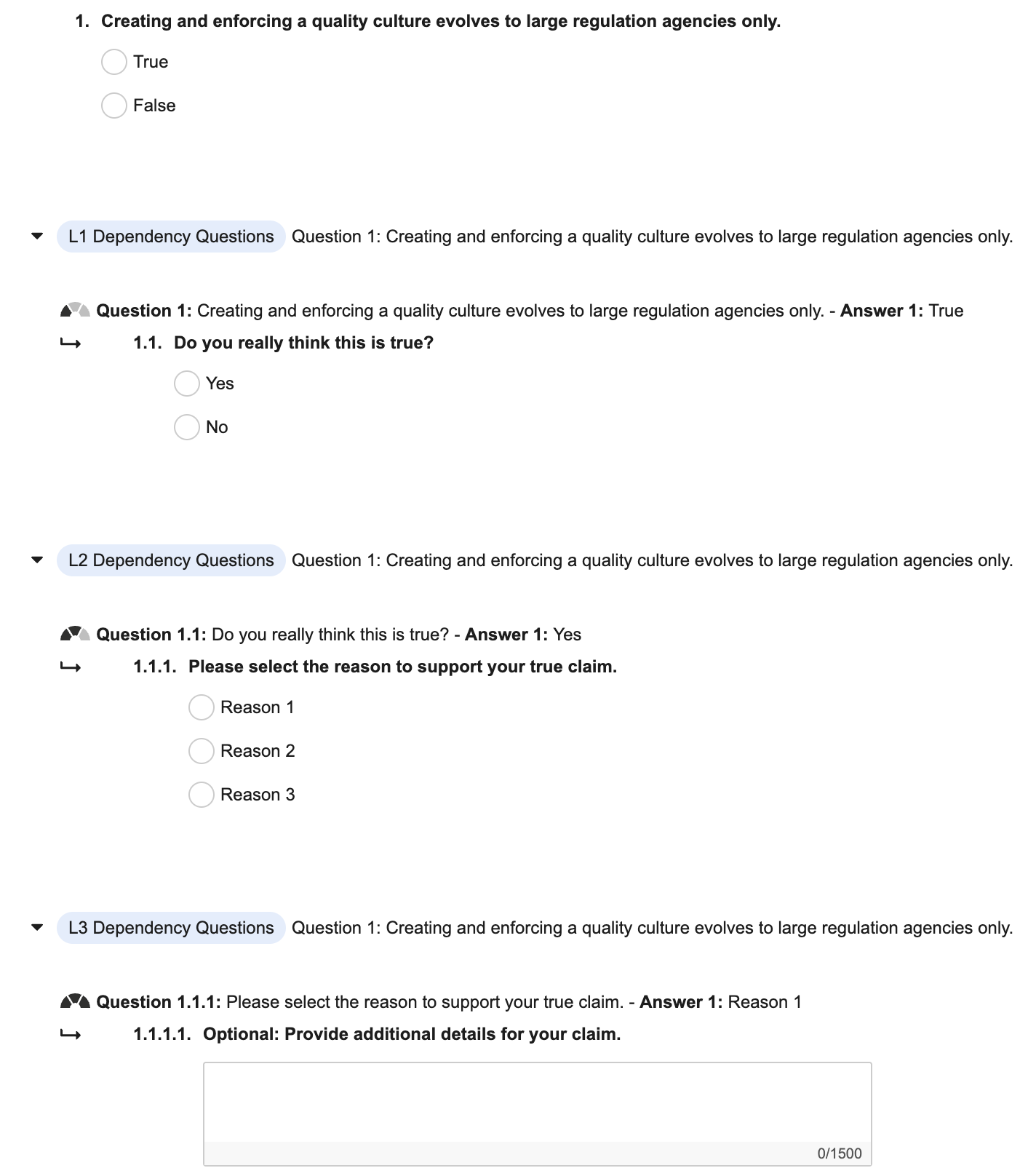
The Visual Checklist Designer allows you to create dependent sections and questions without the need to create a _Dependency Design_ record. Checklists with dependencies allow respondents to follow multiple paths to completing a checklist, and removes non-pertinent questions based on their selections. For example, answering _Yes_ to a _Yes/No_ question could expose a series of follow-up questions, whereas answering _No_ would not show the irrelevant questions.

Dependencies are split between dependent sections or questions and controlling questions. For example, section A contains questions Q1, Q2, and Q3. If Q2 and Q3 are assigned as dependent on Q1, Q1 becomes the controlling question. The same rule applies if section B is assigned as dependent on Q1 in section A. Section B becomes dependent on the controlling question in section A.

<a href="https://platform.veevavault.help/assets/images/24r1.3-using-viusal-checklist-designer-dependencies.png" data-lightbox="images" data-title="" data-alt="Dependencies">
  <img class="docimage" src="https://platform.veevavault.help/assets/images/24r1.3-using-viusal-checklist-designer-dependencies.png" alt="Dependencies" style="width: 400px;"  />
</a>

To configure a dependency:

1. Select the **Dependency** checkbox on a _Multiple Choice_ or _Dropdown_ question type.
2. Select **Add Dependent Question** or **Add Dependent Section** under the _Answer_ fields.
3. Select the dependent question or dependent section from the **Add Dependent Question** or **Add Dependent Section** dropdown.
4. Click **Save**. The dependent section or question will display under the controlling question.

<div class="note-border alert-info">
  <div class="alert alert-info" role="alert">
    <div><i class="far fa-info-circle"></i></div>
    <div class="alert-text">
      <p><strong>Note</strong>: If a section or question is already associated as a dependent, it will not display in the <em>Add Dependent Section</em> or <em>Add Dependent Question</em> list.</p>
    </div>
  </div>
</div>


### Dependency Hierarchy

Dependent sections and questions follow a specific hierarchy: 

* **Section Hierarchy**: At the section level, any dependent sections will align under the section with the controlling question. For example, if question Q1 in section A is controlling of section B and C, both sections will display under section A with a single indention in the left panel.

* **Question Hierarchy**: Dependent and controlling questions must be within the same section. Each dependent question displays under the controlling question with its corresponding level (L1, L2, L3). For example, section A contains questions Q1, Q2, and Q3. If Q2 is assigned as a dependent of Q1, Q2 will display as an L1 dependent question and change to Q1.1. Likewise, if Q3 is assigned as dependent on Q2 (which is now Q1.1), Q3 will display as an L2 dependent question and change to Q1.1.1. If section A contains Q4 and Q5, they will change to Q2 and Q3 respectively. Furthermore, if Q4 and Q5 are assigned as dependent on Q1, they will change to Q1.2 and Q1.3 and display after Q1.1 in the L1 dependent questions. 

* **Answer Hierarchy**: The answer hierarchy controls the order of the dependent questions and dependent sections. For example, Q1 contains answers A, B, and C. If a dependent question is added to answer B, it will display as Q1.1 in the L1 dependent questions. Then, if a dependent question is added to answer A, it will display as Q1.1 and move answer B's dependent question to Q1.2.

Vault automatically reorders dependent questions and sections based on this hierarchy: 

* **Section Reorder**: Each section is reordered by their hierarchy. For example, if section A is in 7th place and section B is in 2nd place in the left pane, section B will automatically move to 8th place if it becomes dependent on a question in section A. The same rule applies to dependent questions.
  
  In addition, the hierarchy of questions can control the order of sections. For example, if section B is dependent on the controlling question Q1 in section A, and section C is dependent on Q2 in section A, section B will display before section C in the left pane.

  The hierarchy of answers can also control the order of sections. For example, if section Y is dependent on answer A of the controlling question Q1 in section X, and section Z is dependent on answer B of Q1, section Y will display before section Z in the left pane. 

* **Question Reorder**: The same rule applies to questions. For example, section A contains Q1, Q2, Q3, and Q4. If Q2 and Q3 are assigned as dependent on Q1, they will move to the L1 dependent questions as Q1.1 and Q1.2 and Q4 will change to Q2.
  
  If Dependent sections exist on a _Checklist Design_ record and don't follow the order mentioned above, a warning dialog window will display when viewing the checklist in the Visual Checklist Designer. The warning will state that the checklist's sections will be reordered. Upon confirmation, Vault will then automatically reorder these sections after the Visual Checklist Designer is launched. If you click _Cancel_ on the warning dialog window, you will be returned to the _Checklist Design_ record detail page.

<div class="note-border alert-info">
  <div class="alert alert-info" role="alert">
    <div><i class="far fa-info-circle"></i></div>
    <div class="alert-text">
      <p><strong>Note</strong>: The Reorder icon allows you to only move sections and questions that are not dependent on a controlling question. You cannot use it to reorder dependent questions and sections. In addition, the <em>Dependency</em> checkbox becomes disabled at the L3 question dependency.</p>
    </div>
  </div>
</div>


## Managing Checklist Translations {#managing-checklist-translations}

The _Language_ drop-down offers tools to translate your checklist into another language. Each available language corresponds to a _Checklist Design Translation_ record for the _Checklist Design_. If your Vault contains no _Checklist Design Translation_ records, the base language and _Manage Languages_ are the only options available in the drop-down. Languages with a _Checklist Design Translation_ record in the _Obsolete_ state are not available for selection.

_Manage Languages_ allows you to add and remove languages for the checklist. Adding a language creates a new _Checklist Design Translation_ record for the selected language. You can only add languages available in your Vault. Removing a language deletes all of its translations, including its _Checklist Design Translation_ record. You cannot remove a language in the _Obsolete_ or _Approved_ state.

Once you switch to a new language, click **Translate** to add or edit the translations for the checklist name, sections, questions, and answers. You can also upload a translated <a href="/en/gr/651424/#managing-approving-checklist-design-translations">Question Design Reference Document</a>
 or [Reference Media][3] in the new language to reference document fields. In _Translate_ mode, the left side of the screen shows text in the original language, while the right side allows you to edit text in the new language. Only sections, questions, and answers configured to display from the <a href="/en/gr/47738/#checklist-type">Checklist Types</a>
 page are available for editing. A green check mark displays next to the section title in the left navigation pane when all fields on the right side contain a saved translation value. If elements of the checklist, such as questions, answers, and sections, are already translated when you switch to a new language, the translations display on screen before you click **Translate**.

<div class="note-border alert-info">
  <div class="alert alert-info" role="alert">
    <div><i class="far fa-info-circle"></i></div>
    <div class="alert-text">
      <p><strong>Note</strong>: You cannot add, edit, or delete sections, questions, and answers while viewing the checklist in another language. Additionally, you can only edit translations for languages with a <em>Checklist Design Translation</em> record in <em>Draft</em> state.</p>
    </div>
  </div>
</div>


## Limits

The Visual Checklist Designer includes the following constraints:
* Custom fields and custom object types are not supported.
* You cannot delete a controlling question or dependent questions and sections. You must first unlink all the dependent questions or sections. To unlink a dependency, return to the controlling question and unselect the _Dependency_ checkbox.
* The _Visual Designer_ option is not available under the _Actions_ menu for aggregate checklists.
* You can only configure up to three levels of dependent questions. For example, if Q1.1 is dependent on Q1, Q1.1.1 is dependent on Q1.1, and Q1.1.1.1 is dependent on Q1.1.1, that is three levels of dependency.
* The _Add Dependent Section_ button is disabled after three (3) levels of dependent sections are created. This applies when creating a dependent section after a third-level dependent question.

## Related Permissions {#related-permissions}

The following permissions control your ability to manage sections and questions, including reference documents and [dependent][1] questions and answers, using the Visual Checklist Designer:
* **Objects: Read** on the _Checklist Design_ object and its related fields
* **Objects:** **Read**, **Edit**, **Create**, and **Delete** permission on all fields and object types within the following objects: 
  * _Section Design_
  * _Question Design_
  * _Available Answer Design_
  * _Question Design Reference Document_
  * _Dependency Design_

The **Objects: Read** and **Create** permissions on the following objects following permissions control your ability to add library questions to your checklist and save checklist questions to the library:
* _Library Question_
* _Answer Library Design_
* _Library Question Reference Document_

If a user only has **Read** permission on the _Question Design Reference Document_ and _Dependency Design_ objects or any of their related fields, an error will occur if they attempt to create, edit, or delete a record from these objects.

The following permissions are required on the following objects to manage translations in the Visual Checklist Designer:

* _Checklist Design Translation_
  * **Read**, **Create**, **Delete**
  * **Read** on the _Language_ field

* _Checklist Field Translation_
  * **Read**, **Create**, **Edit**, and **Delete**
  * **Read** and **Edit** on all fields in the object

### View Mode Behavior {#view-mode}

If a user has no access to the following objects or any of their fields, _View_ mode is displayed and all elements in the checklist are hidden to the user:

* _Section Design_
* _Question Design_
* _Available Answer Design_
* _Dependency Design_
* _Question Design Reference Document_

If a user is granted only **Read** permission to the following objects, or the _Checklist Design_ record is not in _Draft_, the Visual Checklist Designer displays in _View_ mode and the user cannot make changes to any sections, questions, or answers:

* _Section Design_
* _Question Design_
* _Available Answer Design_

<div class="note-border alert-info">
  <div class="alert alert-info" role="alert">
    <div><i class="far fa-info-circle"></i></div>
    <div class="alert-text">
      <p><strong>Note</strong>: If a user does not have permission to view the image document used in the <em>Reference Media</em> field, it will not display in the <em>Checklist Design</em>.</p>
    </div>
  </div>
</div>


[0]: #related-permissions
[1]: #view-mode
[2]: #managing-checklist-translations
[3]: #reference-media
